
My Wealth 1.6.0: your wealth meets local AI
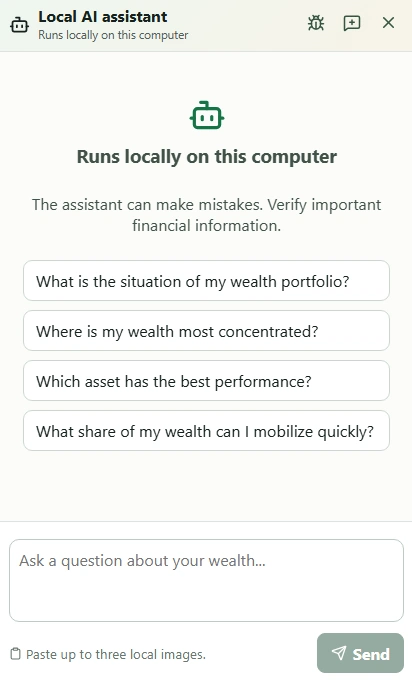
Released on August 28, 2026, My Wealth 1.6.0 introduces an AI assistant that runs directly on your computer. This version also expands investment goals, improves their integration with budgets and strengthens currency conversion management.
The goal remains the same: to help you better understand and manage your wealth while keeping your data under your control.
What’s new at a glance
- Ask questions in natural language and get answers based on your wealth without sending your financial data to an online AI service.
- Use a model suited to your computer’s capabilities, with graphics card acceleration or processor execution.
- Stay in control: read and write permissions are defined separately for each wealth portfolio.
- If you wish, connect external assistants and applications through My Wealth’s local MCP server.
- Create more flexible investment goals by grouping several accounts and freely choosing their target currency.
- Link your goals more precisely to your monthly budget, including when currencies differ.
- Enter an exchange rate manually when it cannot be retrieved automatically.
- Spot changes in your wealth and passive income more easily with clearer charts.
An AI assistant that respects My Wealth’s local-first approach
The main new feature in My Wealth 1.6.0 is the arrival of a local AI assistant on Windows. Unlike an artificial intelligence service hosted online, the model runs directly on your computer: information about your wealth is not sent over the Internet to produce an answer.
You can ask questions such as:
- What is the current state of my wealth?
- Where is my wealth most concentrated?
- Which asset has the best performance?
- How much of my wealth can I access quickly?
The assistant can consult the necessary data, combine several pieces of information and return a structured answer. Its activity remains visible during processing so that you can distinguish analysis of the request, consultation of the portfolio and preparation of the answer.
The conversation is preserved when the panel is hidden. You can also copy a question or answer, attach images and create a local diagnostic report if you encounter a problem.
Like any artificial intelligence, the assistant can make mistakes. Important financial information should always be verified.
Permissions specific to each portfolio
The assistant’s access is controlled directly in the properties of the wealth file.
You can allow read-only access or also permit certain changes. When a write operation is requested, My Wealth validates the parameters and presents the action before it is carried out. AI tools cannot change their own permissions.
These settings are stored in the .mywealth file. They therefore follow the portfolio when it is moved to another device, without depending on an online account.
Several models to match your computer’s capabilities
My Wealth offers several local AI model profiles. You can discover, download and remove them from the application settings.
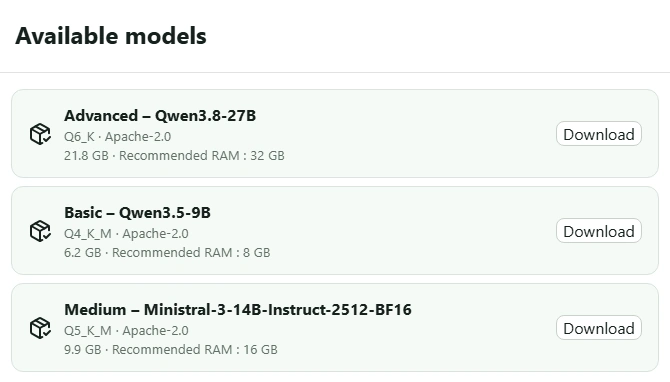
The three profiles differ in their memory requirements, speed and ability to handle complex requests.
| Profile | Model | Recommended memory | Capabilities and recommended use |
|---|---|---|---|
| Basic | Qwen3.5-9B | 8 GB | The lightest and fastest. Suitable for common questions, wealth summaries and simple operations. |
| Medium | Ministral-3-14B-Instruct | 16 GB | More comfortable with comparisons, multi-step requests and more detailed changes. It offers a good balance between quality and required resources. |
| Advanced | Qwen3.8-27B | 32 GB | The most capable model for complex analyses, nuanced wording and requests that require combining more information. It is also the most demanding. |
The stated memory is the recommended amount for using the model under good conditions. Actual performance also depends on the processor, graphics card and memory available on the computer.
The model can run primarily on the graphics card for better performance, solely on the processor, or with a custom number of layers placed on the GPU. An automatic detection function looks for a stable value for your hardware and verifies that the model can perform a minimal inference with the expected acceleration.
If graphics card acceleration does not work correctly during normal use, My Wealth automatically switches to the processor. Processing may then be noticeably slower, but the feature remains available when sufficient system memory is available.
An MCP connection for external applications
For advanced users and developers, My Wealth 1.6.0 also adds a configurable local MCP server. This feature is independent of the built-in assistant: you can ignore it if you simply want to use the local AI supplied with My Wealth.
MCP is a protocol that allows a compatible application to discover and use the tools offered by My Wealth.
| MCP in a nutshell | |
|---|---|
| What is it for? | MCP, or Model Context Protocol, is an open standard that acts as a connector between artificial intelligence and an application. Instead of receiving a simple copy of your data, the AI discovers clearly described tools that it can call when your request requires them. |
| What can My Wealth provide? | Depending on the granted permissions, an AI can, for example, consult the state of the portfolio, analyse its allocation or passive income, search for an asset and prepare certain changes. |
| Which tools can use it? | Ollama can run the model of your choice locally when paired with an MCP client or gateway. LM Studio can run a local model and connect directly to MCP servers. Clients such as Claude Desktop and Cursor also support MCP. |
| Does the data remain local? | My Wealth’s MCP server is accessible only from your computer. However, information processing depends on the tool and model chosen: with a local model, everything can remain on the machine; with an online service, some consulted data may be sent to that service. |
This connection can be used with an external assistant or a local installation managed by other software. It has its own read and write permissions, separate from those of the built-in assistant.
The MCP contract has been substantially expanded in this version. It precisely describes the expected and returned data, restricts modification operations, supports pagination and provides structured errors when a request needs to be corrected. Sensitive identifiers and wealth data are not written to detailed technical logs.
More flexible investment goals
The investment goals introduced in version 1.5 are now more flexible.
Selecting multiple assets was already supported. In version 1.6, a single goal can also group several investment accounts. You can also exclude associated liabilities when your scenario needs to track the gross value of the scope rather than its net value.
For a target value or target passive income, the currency can always be changed. If the selected assets use several currencies, My Wealth suggests the portfolio’s main currency by default without preventing you from choosing another one.
The current value, current passive income, target and monthly investment are presented in the goal’s currency. Projections and explanations therefore use a consistent basis from start to finish.

More precise budget integration
Investment goals now integrate more naturally with budgets. Adding them from the context menu is more visible, and their links with budgeted accounts have been strengthened.
When a goal is associated with a budgeted account, its amount is presented in that account’s currency. A goal defined in Swiss francs therefore appears in euros in a euro account, while remaining in Swiss francs in an account that uses that currency.
Calculations related to target dates, monthly amounts and one-off adjustments have also been optimised. Navigation between months, highlighting of a linked goal and menu stability have been improved on screens of different sizes.
Clearer currency conversion management
Currency conversions are becoming more explicit and safer. When an amount must be displayed in another currency, My Wealth now checks whether the portfolio contains the exchange rate needed to perform the conversion.
With a My Wealth Live licence, the application first attempts to retrieve the exchange rate from the server. If this is not possible, or if no Live licence is available, a dialog lets you enter the required rate directly.
This rate is then stored in the portfolio so it can be reused. A zero value explicitly indicates that the conversion remains unavailable: My Wealth then avoids displaying a total or history that could appear accurate while a rate is missing. An action opens the portfolio properties directly at the exchange-rate section so that the value can be completed later.
Clearer charts
Small changes are now much easier to spot. The evolution charts in the Situation and Passive income views now adapt their vertical axis to the values that are actually visible.
Limits and tick marks are rounded to avoid hard-to-read boundaries while retaining the exact data values. Zero remains the reference point when it is needed to understand the chart.
Reliability, privacy and internationalisation
The local assistant does not rely solely on the capabilities of the selected model. My Wealth also controls how it operates to make answers more reliable: tool selection, parameters, result pages and calculations are checked to reduce answers based on incomplete or outdated information.
Model execution has also been strengthened to avoid planning loops, better guide the model’s reasoning and preserve enough space to produce a structured answer.
Finally, the new screens, states, messages and questions are available in every language supported by My Wealth. Several responsive behaviours, dialogs, selectors and empty states have also been refined.