
My Wealth: update your wealth portfolio from a simple screenshot
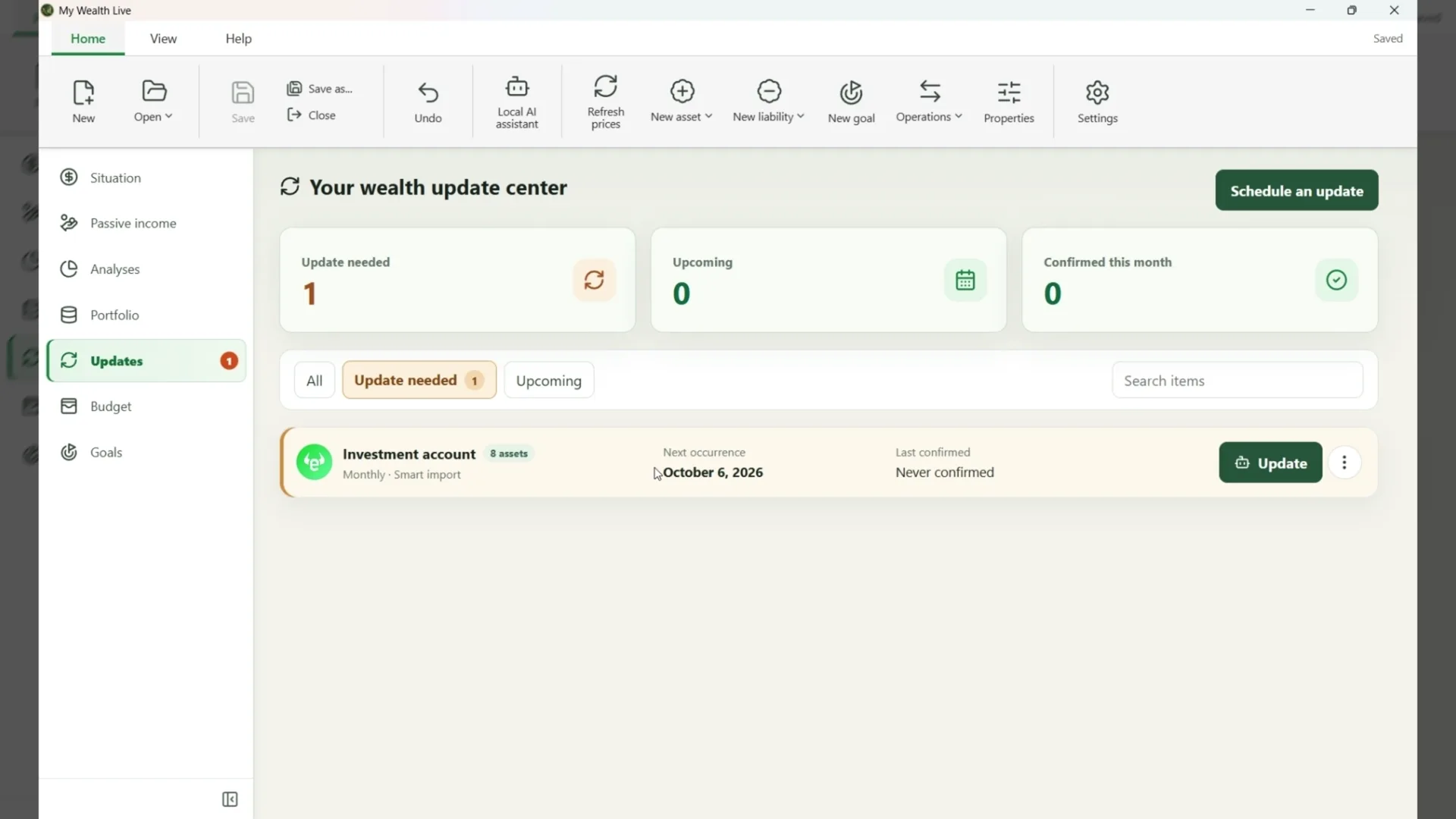
This article describes development as of 6 October 2026. To use the current features, see the Update Centre guide: scheduling and manual entry, with local AI analysis available as an additional option on Windows.
The value of a wealth portfolio changes, but not every item needs checking at the same pace. The My Wealth Update Centre helps you organise these checks and find what needs your attention.
And when a broker or bank already displays all the information you need, there is no need to re-enter every position by hand: a simple screenshot can be the starting point for an update.
When a check is due, you can enter new values yourself or ask local AI to prepare suggestions from an image. Either way, you decide what gets saved and when the check is considered complete.
1. Schedule and track checks
You can track an account, an asset or a liability. Choose its first due date, frequency and preferred update method. Checks can be daily, weekly, every two weeks, monthly, quarterly, every six months or yearly. Tracking an account covers the positions it contains, including those added later, unless they have their own schedule.
The page separates items due for an update from those coming up. The navigation badge shows checks that are due or overdue; each row shows the next due date and the last confirmation. You can change the schedule or method, pause or resume tracking, or remove it without deleting the underlying portfolio item.
2. Update manually
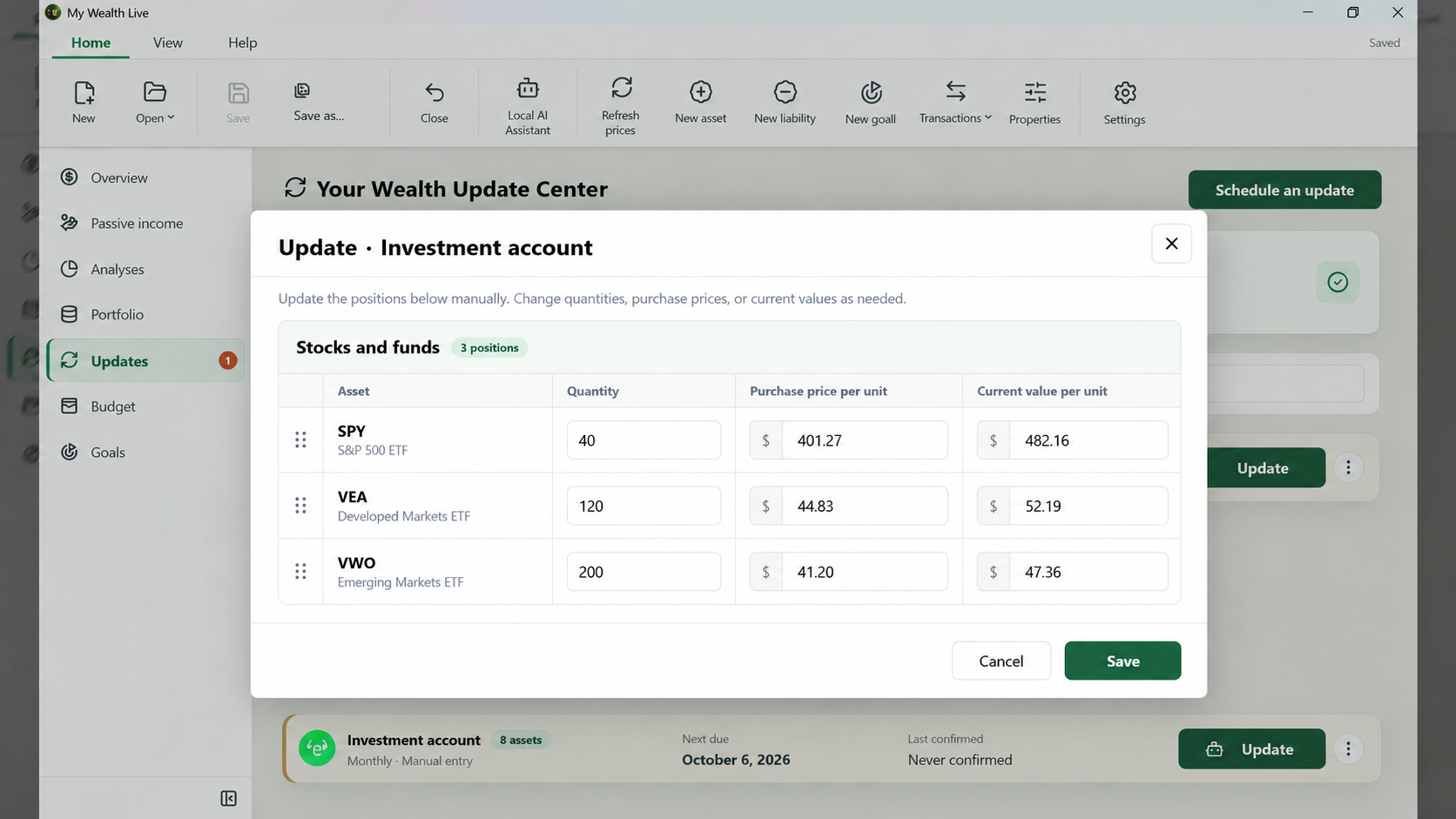
The manual method opens a quick entry dialog for the selected item's essential properties. For an asset or liability, you fill in the fields relevant to its category. For an account, eligible positions appear in rows grouped by category, so you can check several values in one place. Available fields depend on the position type: quantity or unit price may be offered where relevant.
You can customise the order of rows and columns in this dialog. This makes future checks easier without changing the order of items in the portfolio. Confirmed changes are applied together and can be undone through the document's usual undo action. You can also confirm an account check without changing any value.
3. Prepare changes from an image
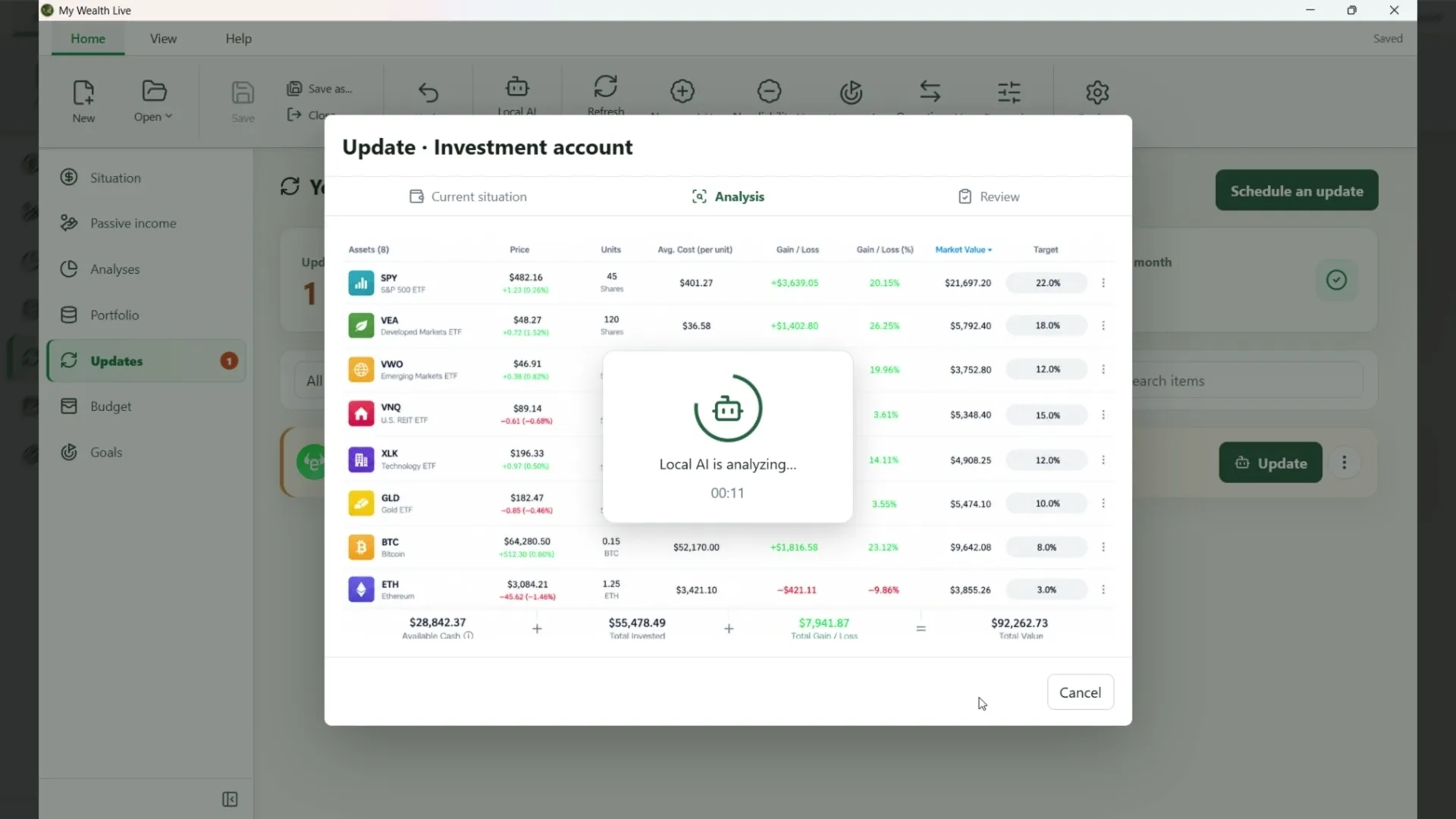
Smart import lets you select a screenshot or paste it from the clipboard. It accepts PNG, JPEG and WebP images. Before analysis, you can add context to explain, for example, what a column means or how to calculate a value. The AI model installed in My Wealth then interprets the image on your computer: the screenshot is not sent to a remote inference service.
The process has three steps: the current situation and image selection, local analysis, then a summary to review. The time needed depends on the model, computer and complexity of the screenshot.
We tested smart import with Qwen 3.5 9B, Gemma 4 12B and Qwen 3.8 27B. Results and analysis time vary with the model, available hardware and image complexity.
4. Review every suggestion before applying it
The summary may suggest changing an existing position, adding a new item or removing a position absent from a sufficiently complete screenshot. When analysing an account, it may also suggest some account properties, such as its opening date or, depending on how it is tracked, cumulative deposits and withdrawals.
For each item, My Wealth shows the current value beside the detected, editable value. You can correct a value, specify an item's identity or category, then choose to apply or ignore its suggestion. Illegible or missing information remains for you to check: it is not replaced with an invented value. Partial results and uncertain matches are flagged; a partial analysis is not enough to suggest a deletion.
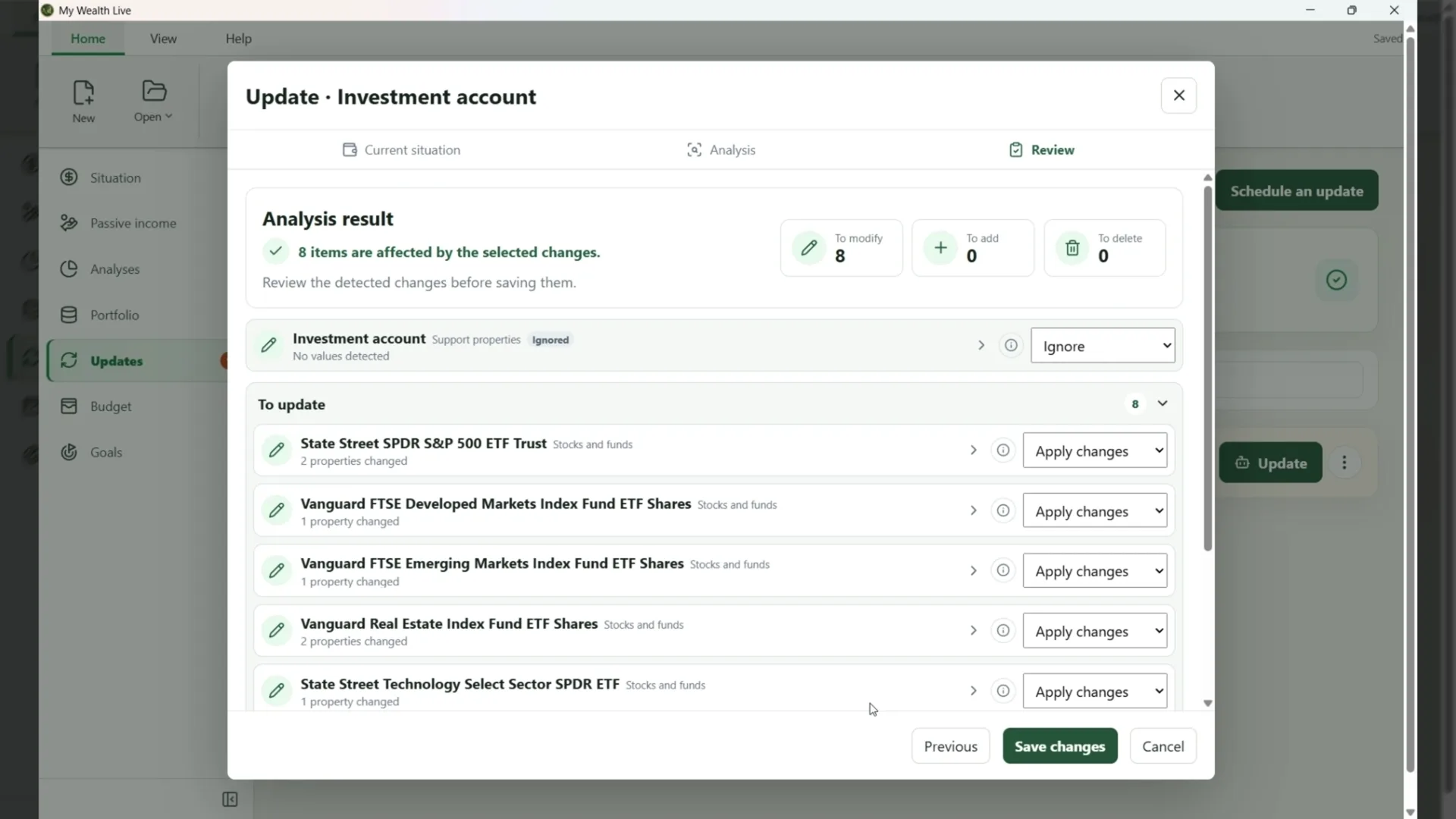
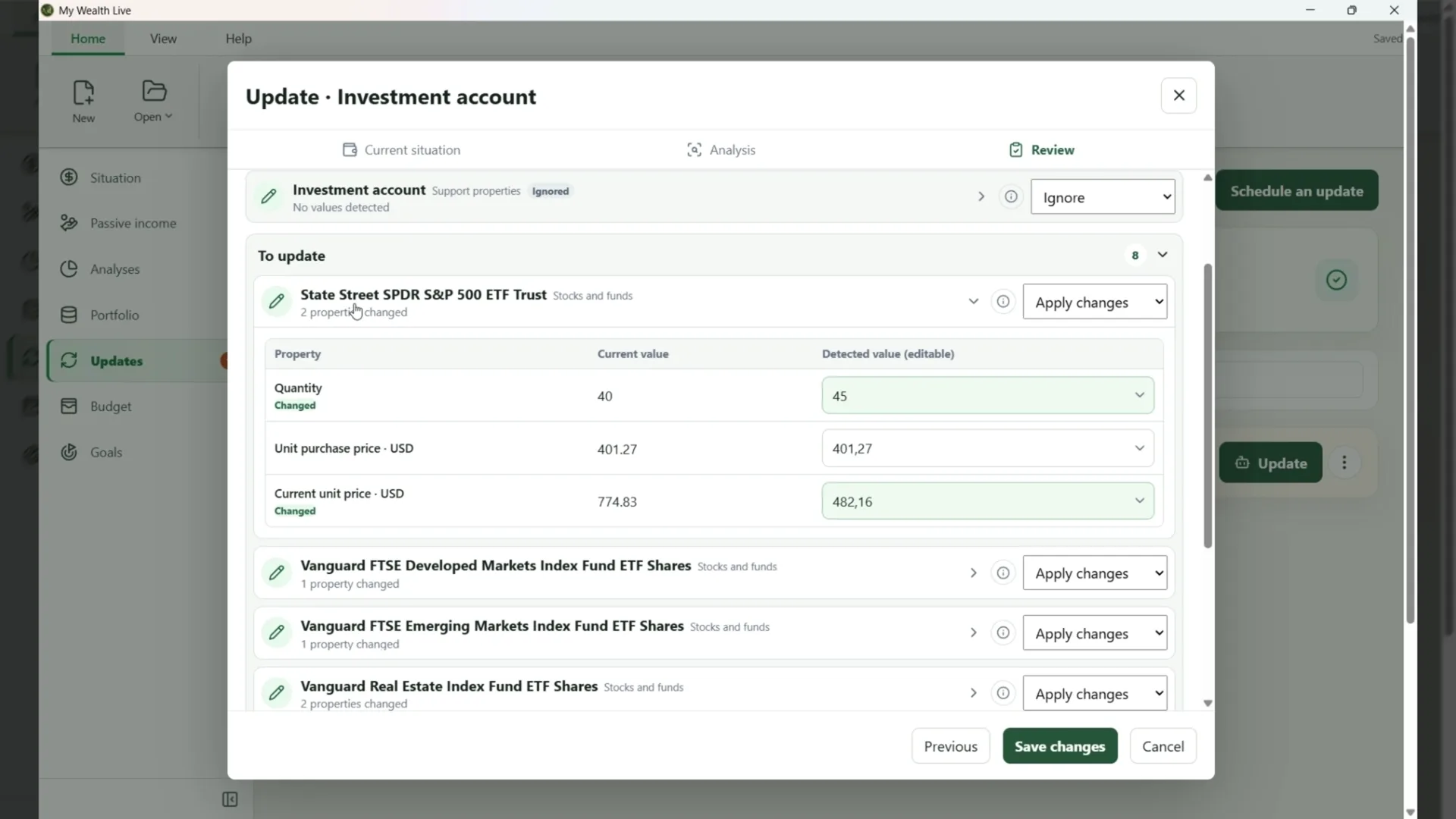
Only the changes you select are applied, in one undoable batch. Confirming a due check is separate from saving values: when tracking is due, My Wealth then asks you to confirm that the check is complete. Declining this confirmation keeps the saved values and leaves the check due.
The Update Centre and smart import are designed for My Wealth on Windows. Smart import requires a local AI model installed in Settings. File import and online update methods are planned but are not yet available.