
Schedule and perform wealth updates
The Update Centre brings together recurring tracking for a holding account, asset or liability. On desktop, open Updates after Wealth in the navigation. On smartphone, open the menu of additional views to access it.
1. Scheduling, manual entry and smart import
You can schedule tracking, enter values manually, view due dates, confirm an occurrence, and stop, resume or delete tracking. You can also choose Smart import as the tracking method. On Windows, this method lets you analyse a source using local AI and edit the additional information that guides the analysis.
Tracking schedules, values and additional information are saved in the wealth file and follow you from one device to another.
2. Schedule tracking
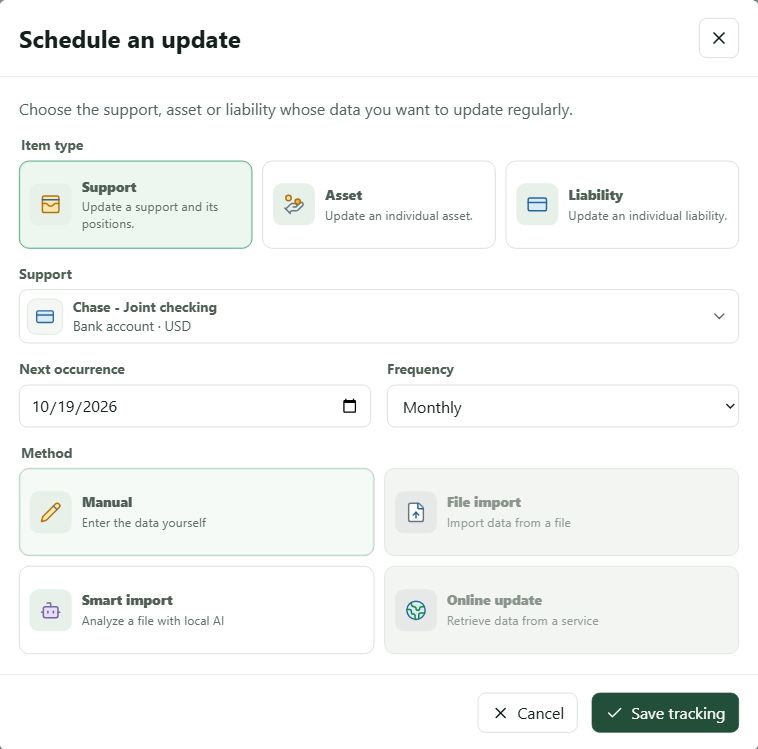
- In Updates, choose Schedule an update. The Schedule an update dialogue distinguishes Investment Vehicle, Asset and Liability: an investment vehicle groups its positions, while an asset or liability is tracked individually.
- Find and select the relevant item. The list offers only items without tracking; changing the type clears the previous selection. When editing existing tracking, its target stays fixed.
- Choose the next occurrence and frequency: daily, weekly, every two weeks, monthly, quarterly, half-yearly or yearly.
- Choose the update method, then save the tracking schedule. Manual lets you enter new values. Smart import prepares tracking whose source can be analysed on Windows with a compatible local AI model.
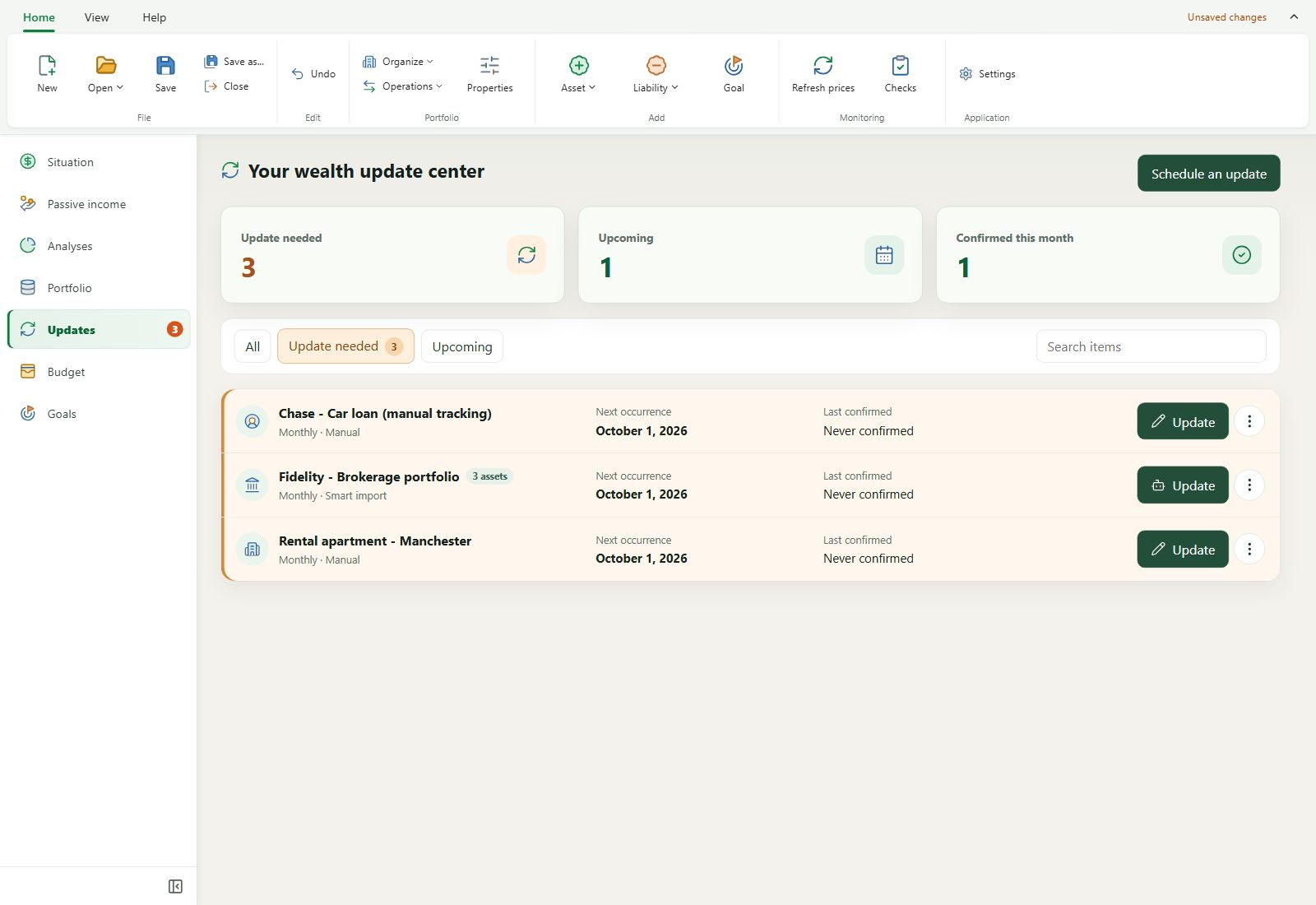
The To update filter shows tracking whose deadline has arrived or passed by default; the navigation counter shows its number. You can also view other tracking, sorted by next occurrence. Tracking can be stopped and resumed without losing its configuration. Deleting tracking removes the schedule after confirmation, without deleting the investment vehicle, asset or liability from your wealth.
Tracking an investment vehicle covers its current positions, except those with their own tracking. Loans whose values are calculated automatically are not offered for manual entry within the investment vehicle.
3. Enter values manually
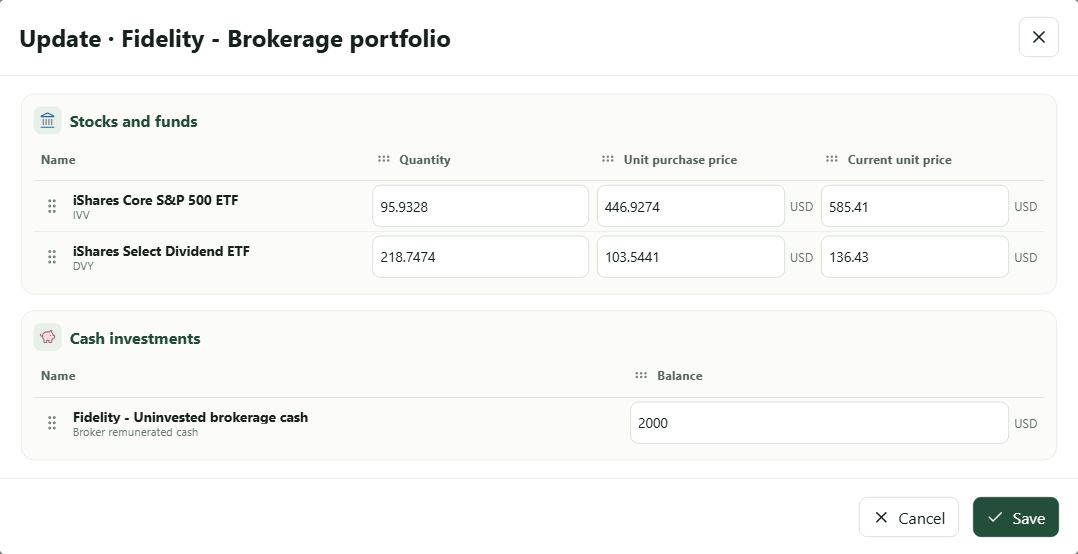
Choose Update for tracking whose method is Manual. The dialogue gathers the asset's or liability's essential properties. For an investment vehicle, positions are grouped by family and you can adapt row and column order for that tracking. Check the values, then save them in your wealth.
Saving values and confirming the occurrence are two separate actions. When a deadline is due, My Wealth offers to confirm it after a successful save; you can decline while keeping the new values. You can also explicitly confirm a due deadline without changing a value. Confirmation updates the last completion date and calculates the next occurrence.
4. Analyse a source with smart import
Smart Import analysis runs on Windows and requires a compatible installed local AI model. You can provide a PNG, JPEG or WebP image, a CSV, TSV, TXT or OFX file, or a PDF containing selectable text. Local AI then prepares a summary for you to review before saving.
1. Update source
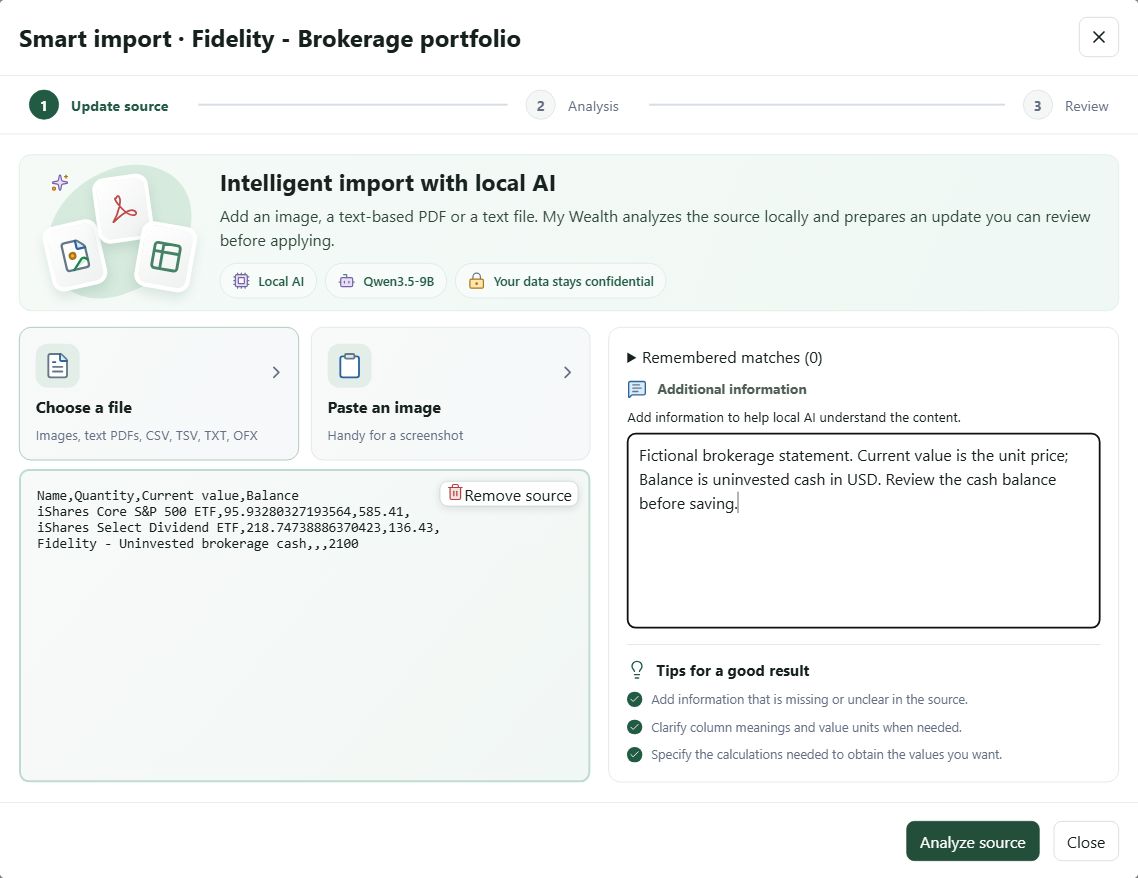
Choose a file, paste an image or drop a file into the designated area. A broker screenshot, position export or text-based PDF statement can serve as a starting point. The area shows a preview of your chosen source; you can remove or replace it before analysis.
In Additional instructions, explain what is missing or ambiguous in the source, what columns or units mean, and any calculations required. These instructions belong to the tracking and are retained when you start analysis. Example text to paste for an eToro statement:
2. Analysis
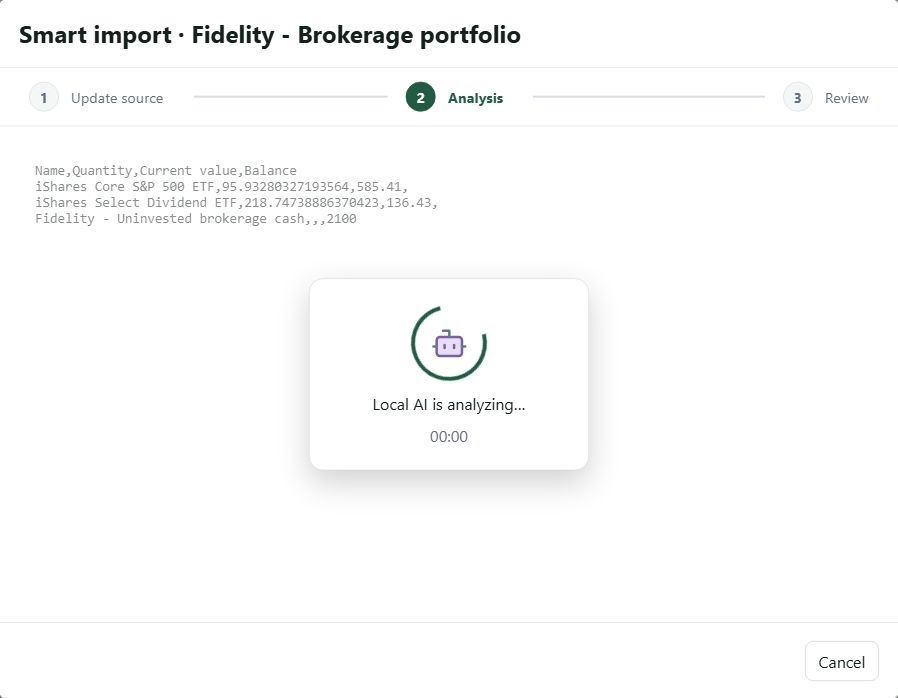
Select Analyse source. The local model examines the provided content and prepares observations; the analysis indicator appears during processing. This step does not change your wealth. Duration depends on the installed model, computer and source complexity.
3. Reviewable summary
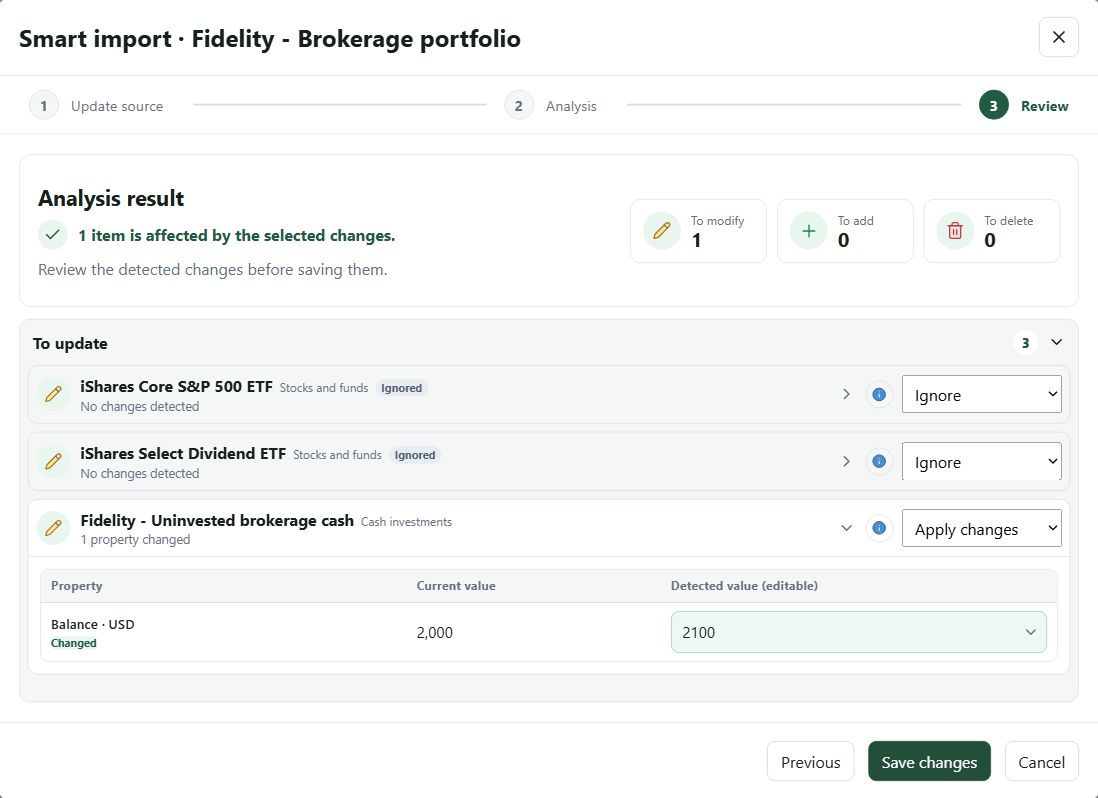
The analysis result shows how many items are to be changed, added or deleted among selected operations. For an investment vehicle, its own properties may count as one item to change. Proposals are grouped under To update, Proposed deletions, Proposed additions and, where necessary, To identify. Open each row to check what will actually be saved: a recognised, unchanged position may also appear in the summary without creating a change.
Check and correct an existing position
Each property compares the current, read-only portfolio value with the detected value, which can be corrected. Edit the latter if the source was misinterpreted or the additional information requires a specific calculation. Only properties with a proposed value are changed; a property absent from the source retains its current value. In the illustrated fictional review, the cash balance changes from USD 2,000 to USD 2,100, while the two ETFs remain unchanged. The eToro text example above illustrates a different source: adapt the additional information to your own statement.
If a value was recognised under the wrong property, the editable field may also offer other values observed on the same row: choose the correct observation or enter the value manually. The row's information button displays source excerpts, units and, where available, calculation details. It helps check a value's origin without replacing your own review.
If analysis matches a statement row to the wrong position, use Change interpretation, then Existing item to change, and select the corresponding position. For tracking that covers only one asset or liability, this association is the only possible interpretation.
Add, keep or delete positions
For investment vehicle tracking, an unknown statement row may be offered under Proposed additions. Open it to check or correct its family, name, currency, identifier or type, and essential values. Missing fields are marked To complete: fill them in before saving. If the row appears under To identify, click Identify this item to decide whether it is an existing position, a new position or a proposed deletion, then choose the matching item if necessary. These options depend on the positions present in the investment vehicle.
An existing position that does not appear in a source considered complete may appear under Proposed deletions. Examine its value and the source before choosing Delete position. A partial screenshot, filtered statement or incomplete export may omit a position you still hold: choose Ignore to keep it. With partial analysis, unseen positions may remain in this group, but deletion is not selected automatically. Some deletions may also be refused if a dependency prevents them.
For each interpreted row, the Action when saving menu lets you apply the change, addition or deletion, or ignore it. You can therefore approve some proposals and discard others in the same summary. An ignored row stays unchanged in your wealth. If you change a mapping, check proposals concerning that position again: the summary avoids applying both a corrected association and its automatic deletion.
Investment vehicle properties and points to check
When recognised, the investment vehicle's own properties appear in a separate card before its positions: opening date and, if performance tracking uses manual cash flow entry, cumulative deposits and withdrawals. Compare current and detected values, correct them if necessary, then choose to apply or ignore this card. Cumulative amounts replace existing totals; they do not create new movements. Undetected properties stay unchanged.
Points to check highlight, among other things, uncertain mappings, missing or unreadable properties, calculations to verify or a potentially incomplete source. Examine takes you to the relevant row; Analysis details provides more information about a partial result. A currency difference requires your explicit confirmation: My Wealth does not automatically convert the observed value. Correct invalid values and complete the required fields of selected additions before saving.
Save the batch
After reviewing, choose Save changes. The button is available only when at least one change, addition or deletion is selected. The batch is validated and saved as one undoable change; if wealth data have changed between analysis and approval, run the analysis again. Back returns to the source and its additional instructions, while closing the dialogue abandons unsaved proposals. The source and analysis result remain temporary; additional instructions are retained in the tracking as soon as analysis starts.
If the tracking deadline is due after saving, My Wealth offers to confirm it separately. Declining this confirmation keeps the saved changes and leaves the deadline pending.