
My Wealth 1.7.5: schedule updates and save time with local AI
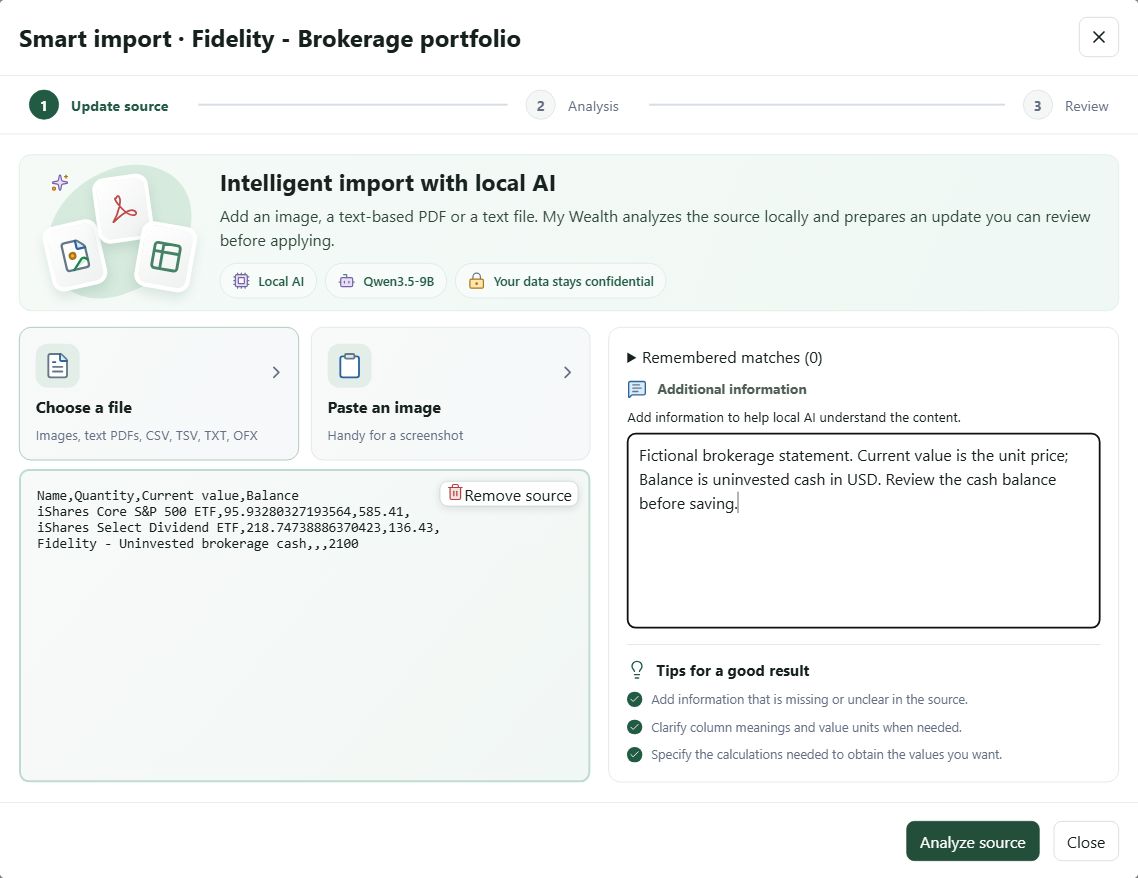
My Wealth 1.7.5 brings regular wealth checks together in an Update Centre and makes smart import more flexible. This version also helps you understand a month's movements in the Situation view.
1. What's new at a glance
- Schedule checks for an investment vehicle, asset or liability and find the deadlines that need attention.
- Quickly update values manually, including several positions within the same investment vehicle.
- Give smart import an image, a CSV, TSV, TXT or OFX file, or a text-based PDF; review its proposals before saving them.
- Examine monthly movements, from quantity changes to contributions, outflows and principal repayments.
- Find new local AI model profiles and My Wealth Live data in read-only MCP tools.
2. An Update Centre for tracking deadlines
On Windows and Android, the Updates view brings regular wealth tracking together. Choose an investment vehicle, asset or liability, then set the next date, frequency and update method. Due checks are highlighted; you can also view upcoming ones, pause tracking or resume it without losing its configuration.
The manual method presents the properties needed for the update. For an investment vehicle, positions are grouped by family in one dialogue, with row and column order that you can adapt to how you work. Values are saved together. When a check is due, confirming its completion remains a separate step: you can save values without immediately marking the check as completed.
3. Smart import supports more sources
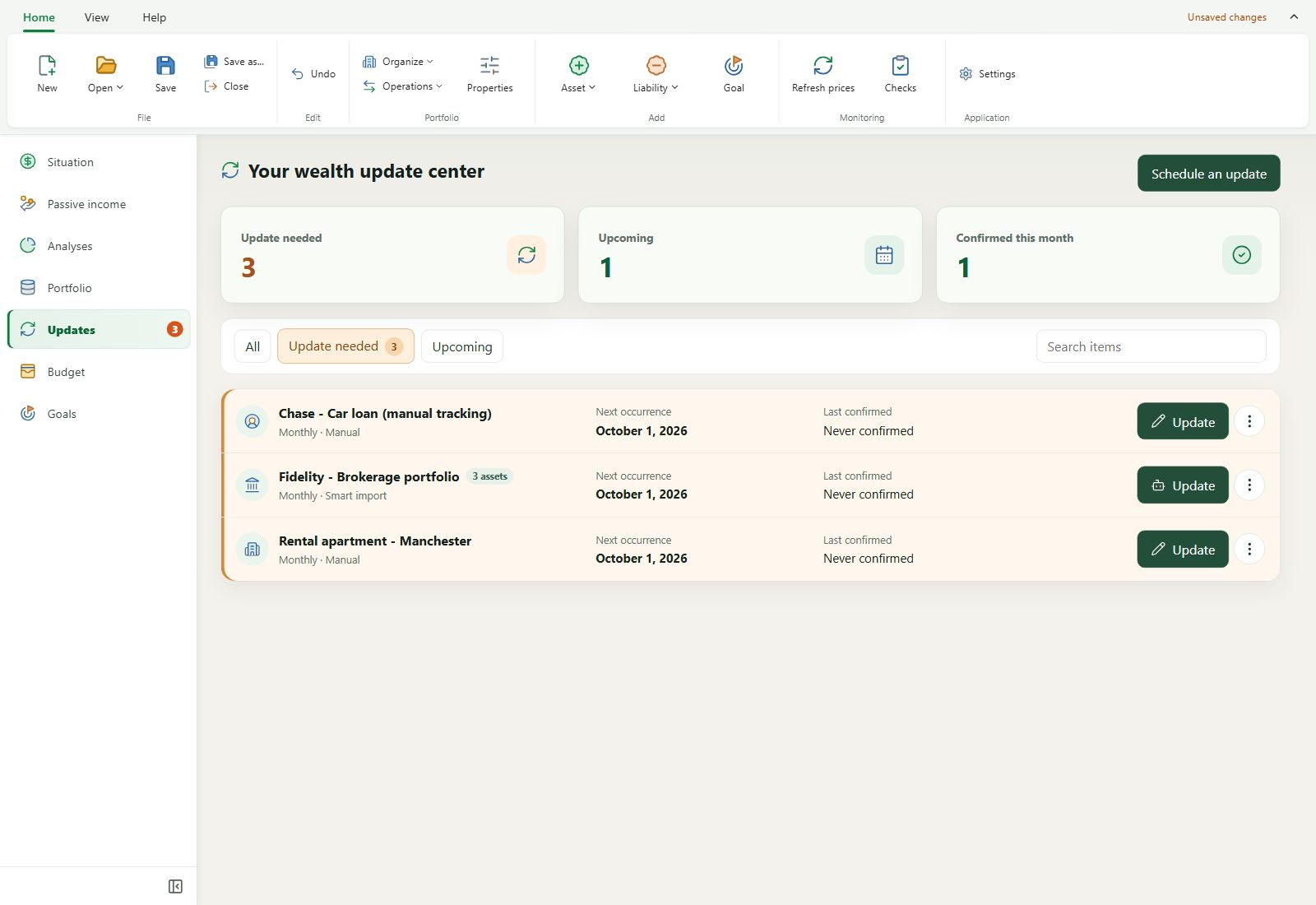
Smart import in the Windows Update Centre now accepts PNG, JPEG and WebP images, CSV, TSV, TXT and OFX files, and PDFs containing selectable text. Choose a file, paste an image or drop your source into the dialogue. You can add instructions about a column's meaning, a unit or a calculation to perform.
The installed AI model analyses the source on your computer and prepares a summary. Analysis does not change your wealth: you examine current and proposed values, correct mappings or amounts if needed, then choose the changes, additions or deletions to apply. Selected changes are saved as one undoable batch.
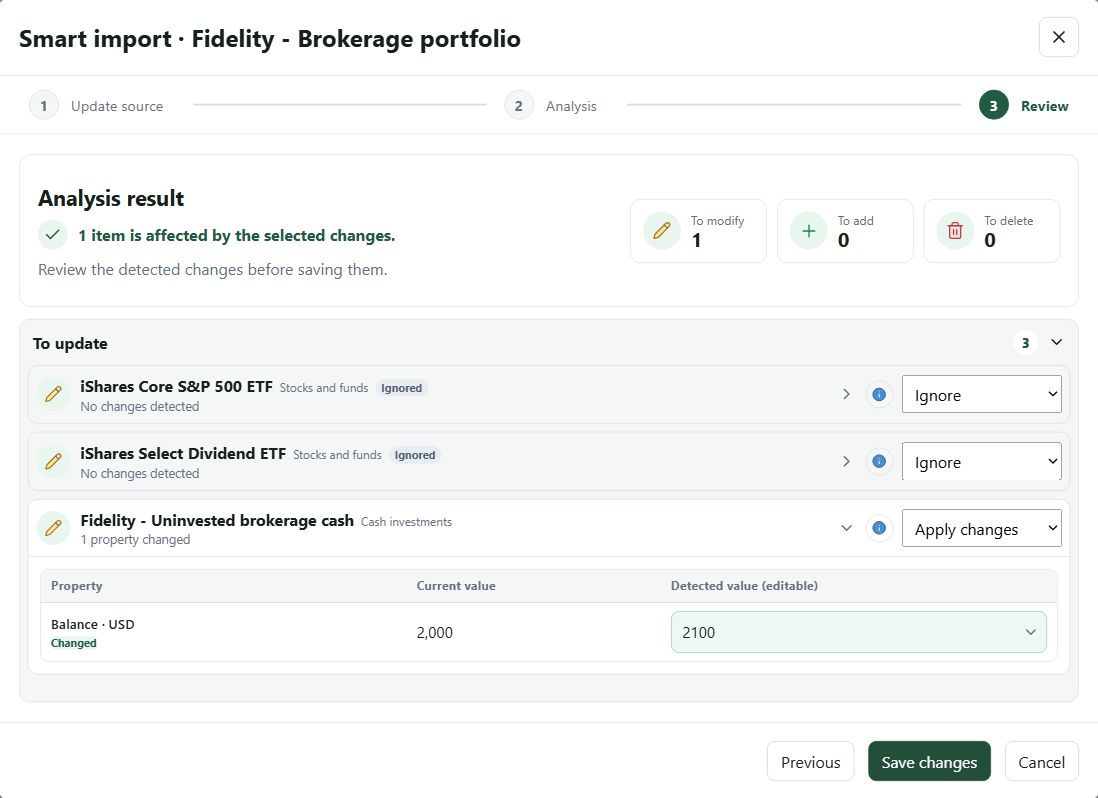
The Update Centre guide explains the three steps, from preparing a source to approving the summary.
4. Understanding a month's movements
In Situation, the new Monthly Movements view groups changes by custodian, investment vehicle and position. It distinguishes quantity changes, tracked deposits and withdrawals, and loan principal repayments. A summary presents contributions and outflows without counting a movement twice when it appears at both investment vehicle and asset level.
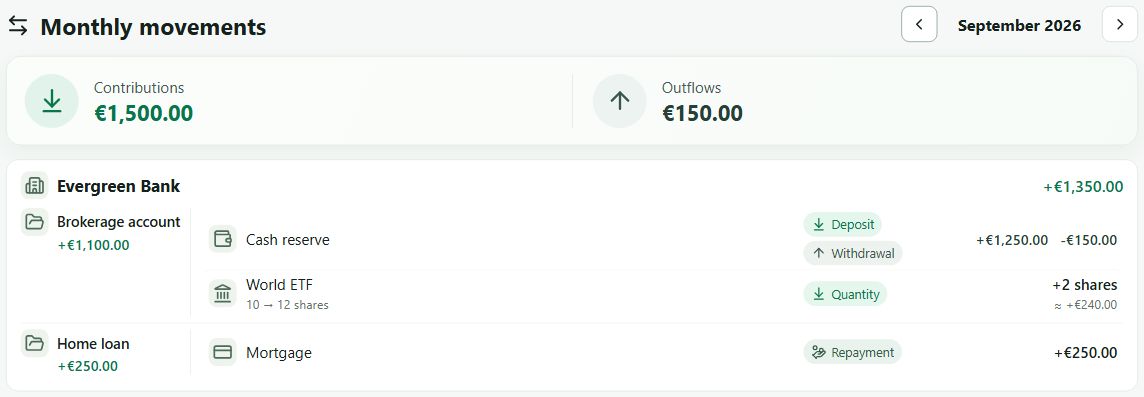
A change in value may come from the market or exchange rates without representing a deposit. My Wealth preserves this distinction and flags missing historical conversions when a total cannot be established completely. Understand monthly movements.
5. Local AI and My Wealth Live data
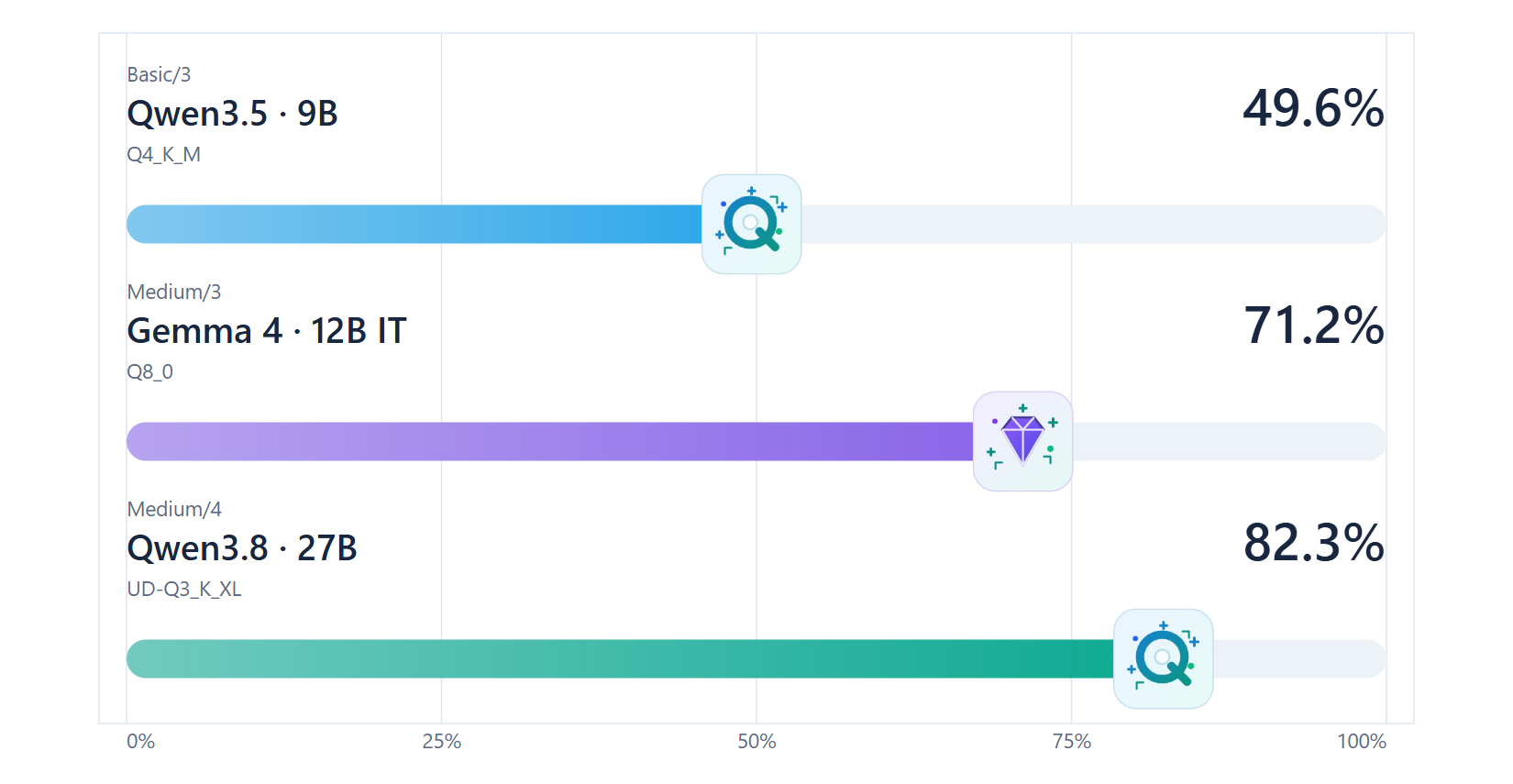
Four local model profiles are offered according to your computer's capabilities. This version adds Medium/4, based on Qwen 3.8 27B: its quantisation allows it to be used on a graphics card with only 16 GiB of VRAM.
| Profile | Model | Quantisation | Target VRAM |
|---|---|---|---|
| Basic/3 | Qwen 3.5 9B | Q4_K_M | 8 GiB |
| Medium/3 | Gemma 4 12B instruct | Q8_0 | 16 GiB |
| Medium/4 NEW | Qwen 3.8 27B | UD-Q3_K_XL | 16 GiB |
| Advanced/2 | Qwen 3.8 27B | Q6_K | 32 GiB |
The stated VRAM is the reference used to recommend a level, not a guarantee that the model will run entirely on the graphics card. Depending on the configuration, My Wealth may also use system memory and the processor. The model remains installed and runs on your computer. Choose a model for the local AI assistant.
We evaluated Qwen 3.8 27B on our test bench, which consists of 260 questions and requests to modify a reference wealth file. Even with heavy quantization to run on a graphics card with 16 GiB of memory, it delivers excellent results: its score reaches 82.3 %, ahead of Gemma 4 12B (71.2 %) and Qwen 3.5 9B (49.6 %).
All four profiles use version 0.5.0 of the new local llama.cpp inference server.
Applications and assistants connected to My Wealth's MCP server can also consult My Wealth Live data in read-only mode: exchange rates, listed instruments, SCPI property funds, cryptocurrencies and precious metals. These queries require a Live licence and do not change your wealth. Discover MCP tools.
6. More reliable updates
This version fixes, among other things, duplicate tracking entries created after a schedule was stopped. Smart import correctly starts or reuses the selected local model, even when its backend was stopped. The summary also retains usable observations when part of the source remains uncertain, allowing you to review each proposal without losing the rest of the analysis.