
Using the local AI assistant
The local AI assistant is available on Windows. The model and inference server run on the computer; this feature does not send conversation data to a remote AI provider.
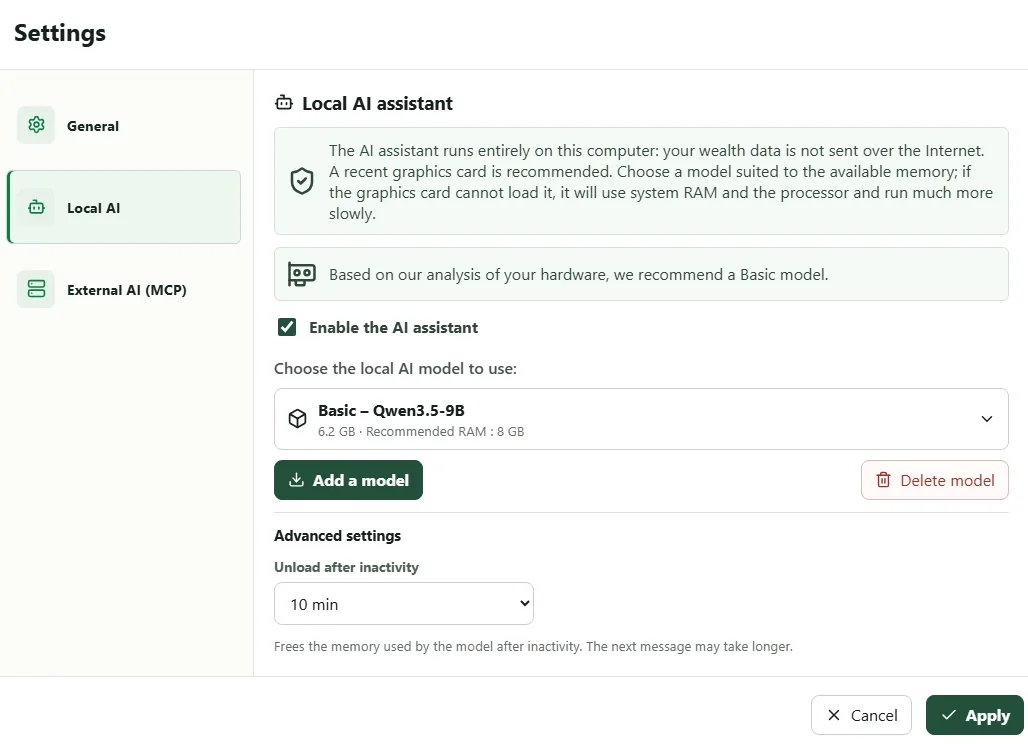
1. Installing a suitable model
- Open Settings > Local AI.
- Enable Local AI assistant.
- Select Add a model.
- Choose Basic to get started, Medium for more detailed requests, or Advanced for the most complex analyses.
- Wait for the download to finish, select the installed model, then choose Apply.
The profiles recommend approximately 8 GB, 16 GB, or 32 GB of memory depending on the model. Available memory and the performance of the processor or graphics card greatly affect speed. If a large model is too slow or fails to start, select the lower profile.
2. Configuring graphics-card use
Next to the installed model, open Settings. You can choose:
- Maximum GPU — recommended to request maximum use of the graphics card;
- CPU only to avoid using the graphics card;
- Custom to set the number of GPU layers between
0and999.
With Custom, Determine automatically tests several values and displays the current layer. My Wealth then checks the selected value with a short local inference and does not count a start that ultimately used only the processor as a success. During normal use, however, a graphics-acceleration failure may cause an automatic fallback to the processor.
3. Authorising this wealth file
- Open the wealth file you want to query.
- Open Properties > Artificial intelligence.
- Enable read permission for the local assistant.
- Enable modification permission only if you want it to propose writes.
- Apply the properties.
These permissions are stored in the file. They do not automatically apply to another wealth file and remain separate from MCP.
4. Asking a verifiable question
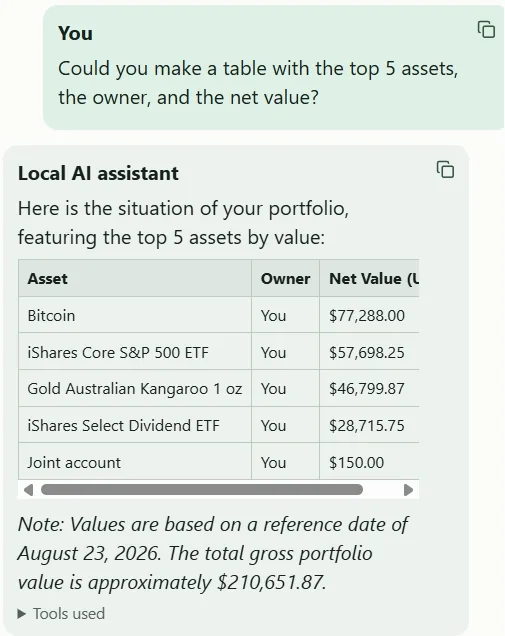
Open the assistant panel, then start with a question whose result can be checked in the application:
- the overall situation of your wealth;
- the main concentrations;
- the best-performing assets;
- the share of your wealth that can be accessed quickly.
You can attach up to three local images. An image provides context for the question; it is not automatically added to your wealth file.
Checking the answers
Compare the quoted amounts with Situation, Passive income, or Analyses. If the assistant proposes a modification, read the confirmation, targeted item, and value before accepting.
If the panel remains unavailable, check in turn the model selected in the settings, read permission in the wealth file, and available memory.