
My Wealth 1.7.6: navigation, checks and rankings
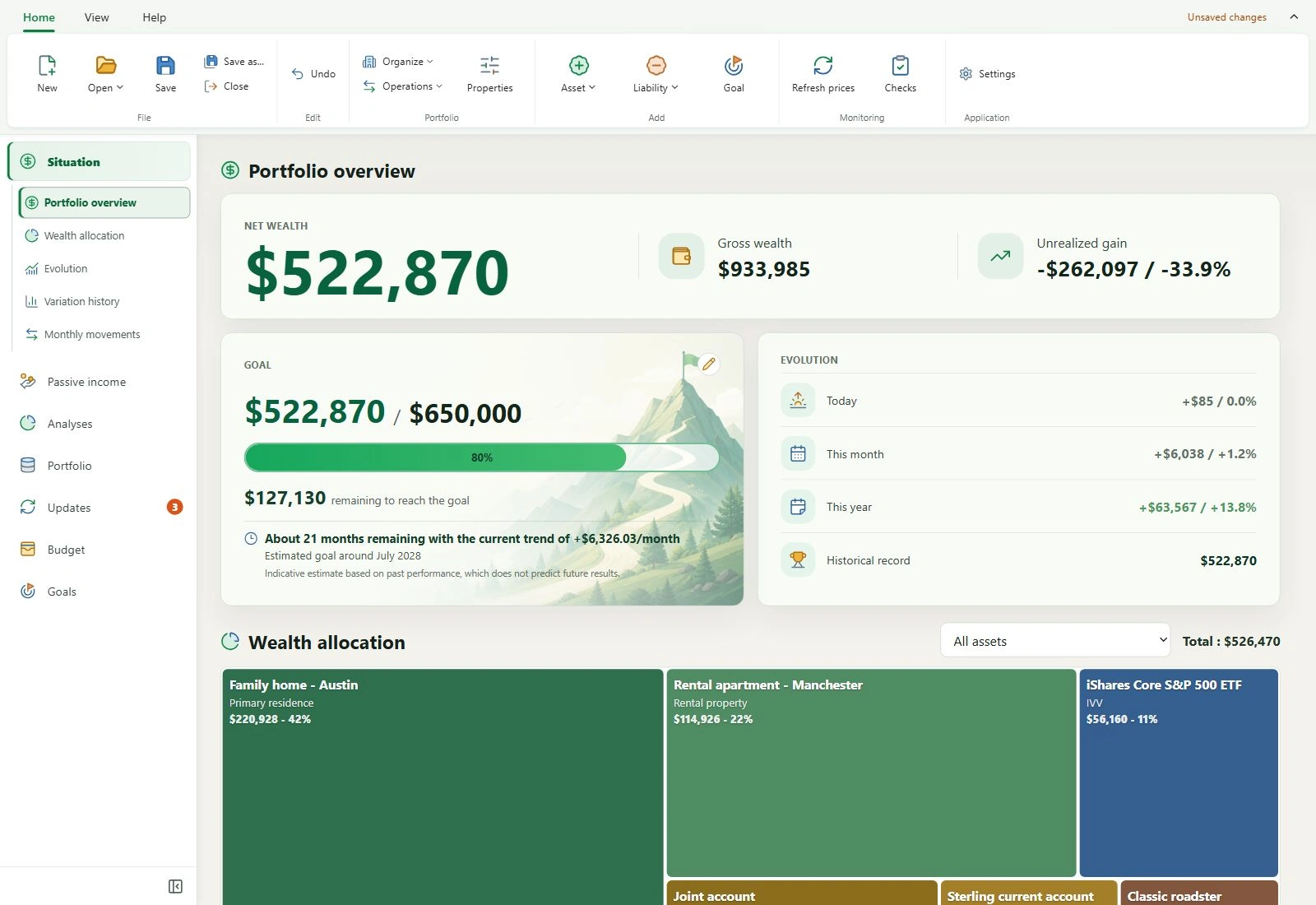
My Wealth 1.7.6 reorganises commands, brings calculation issues together in a checks panel and simplifies wealth rankings. This version also makes the passive income target easier to adjust and brings several local AI improvements.
1. What’s new at a glance
- Find commands in a reorganised ribbon that adapts to the window width.
- Identify commands more easily with new coloured icons.
- Identify missing conversions and transfer cycles in Checks.
- See where your wealth stands in twenty countries and worldwide with clearer ranking cards.
- Adjust your monthly passive income target with minus and plus buttons.
- Browse all available compatible versions of local AI models.
2. A ribbon that is easier to navigate
On Windows, the Home tab groups commands by role: file, editing, wealth, adding, tracking and application. Organise and Operations sit beside Properties, while adding assets, liabilities and goals remains in its own group.
The ribbon adjusts command sizes to the available space before moving some groups into menus. You can also collapse it to give your portfolio more room. Keyboard navigation retains its focus indicators.
3. Coloured icons to help you find your way
My Wealth commands adopt coloured icons, providing visual cues to find an action more easily. Their appearance has been harmonised across the Home, View and Help tabs, navigation, portfolio pages and dialogs on desktop and smartphone.

4. Checks to understand incomplete results
An unavailable conversion or a cycle between budget accounts can prevent a complete calculation. The Checks panel gathers these issues, identifies affected results and offers access to corrections.
Counters distinguish active issues from unread items. Affected results show their incomplete status: a partial total should no longer be interpreted as an exact value of wealth or its recent change.
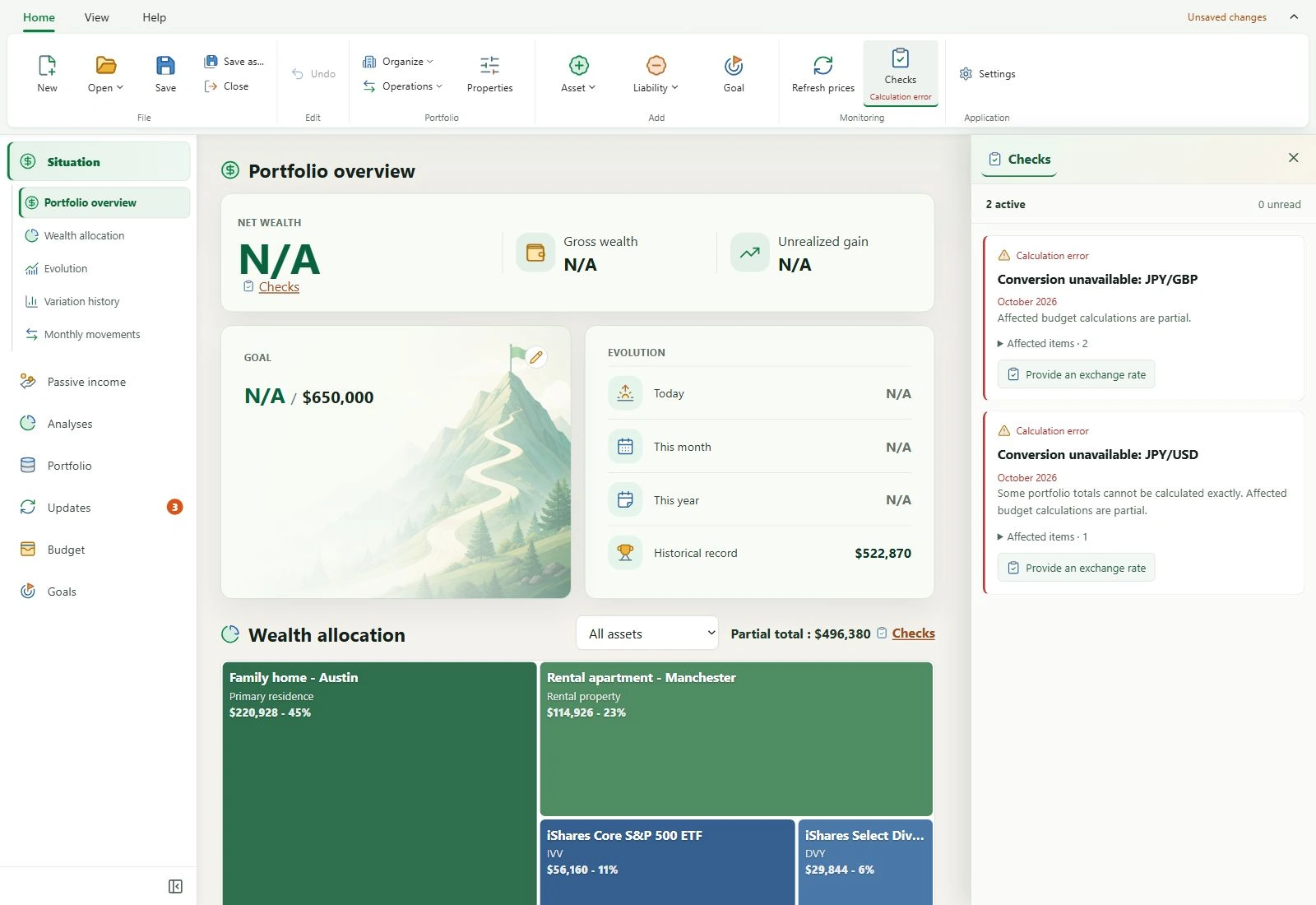
This panel works without the AI assistant and without a Live subscription. When a local assistant is used, both features share the side panel: you can switch between a conversation and checks without losing your exchanges. Adapted commands also provide access to checks on smartphones.
The currency and exchange rate guide and troubleshooting help explain possible corrections.
5. Clearer wealth rankings
In Analyses, see where your wealth stands in twenty countries and worldwide. Simplified cards put your result first. A round ⓘ button opens additional explanations when you want to know more.
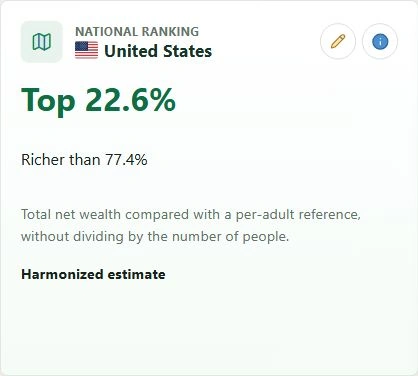
All twenty countries are included automatically. Data quality labels remain visible to help interpret these estimates. The comparison uses the document’s total net wealth against a reference for one adult.
The wealth analyses guide explains how to read these indicative references.
6. An easier way to adjust your passive income target
The monthly passive income goal dialog now has − and + buttons, usable with a mouse, keyboard or smartphone. The step adapts to the size of the amount and is recalculated after each change. The target remains zero or positive.
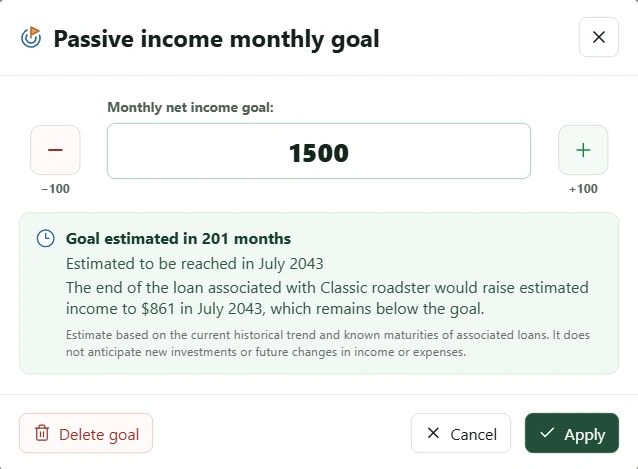
You can still enter the amount directly, review the estimate, confirm, cancel or delete the target. This setting remains separate from investment goals and their projections. Understanding passive income tracking.
7. A more complete catalogue of local models
The Available models list shows all offered compatible versions that are not yet installed. Models are grouped by Basic, Medium and Advanced profile, then sorted by increasing version number. An older compatible version therefore stays visible when another version of the same profile is available.
The catalogue remains browsable without a Live licence. When a licence is present, its handling and result refreshing have been improved. Configuring the local AI assistant.
8. Discover My Wealth 1.7.6
Consult My Wealth help for detailed walkthroughs and try the demo to explore the application with a fictional portfolio.
Download My Wealth for Windows from the download area. The Windows and Android guide explains features and availability on each platform.