
Windows and Android: what are the differences?
Windows and Android read the same .mywealth file. You can therefore prepare your wealth data on Windows, then view or edit it on Android. The main differences concern file handling and features that require a local service on the computer.
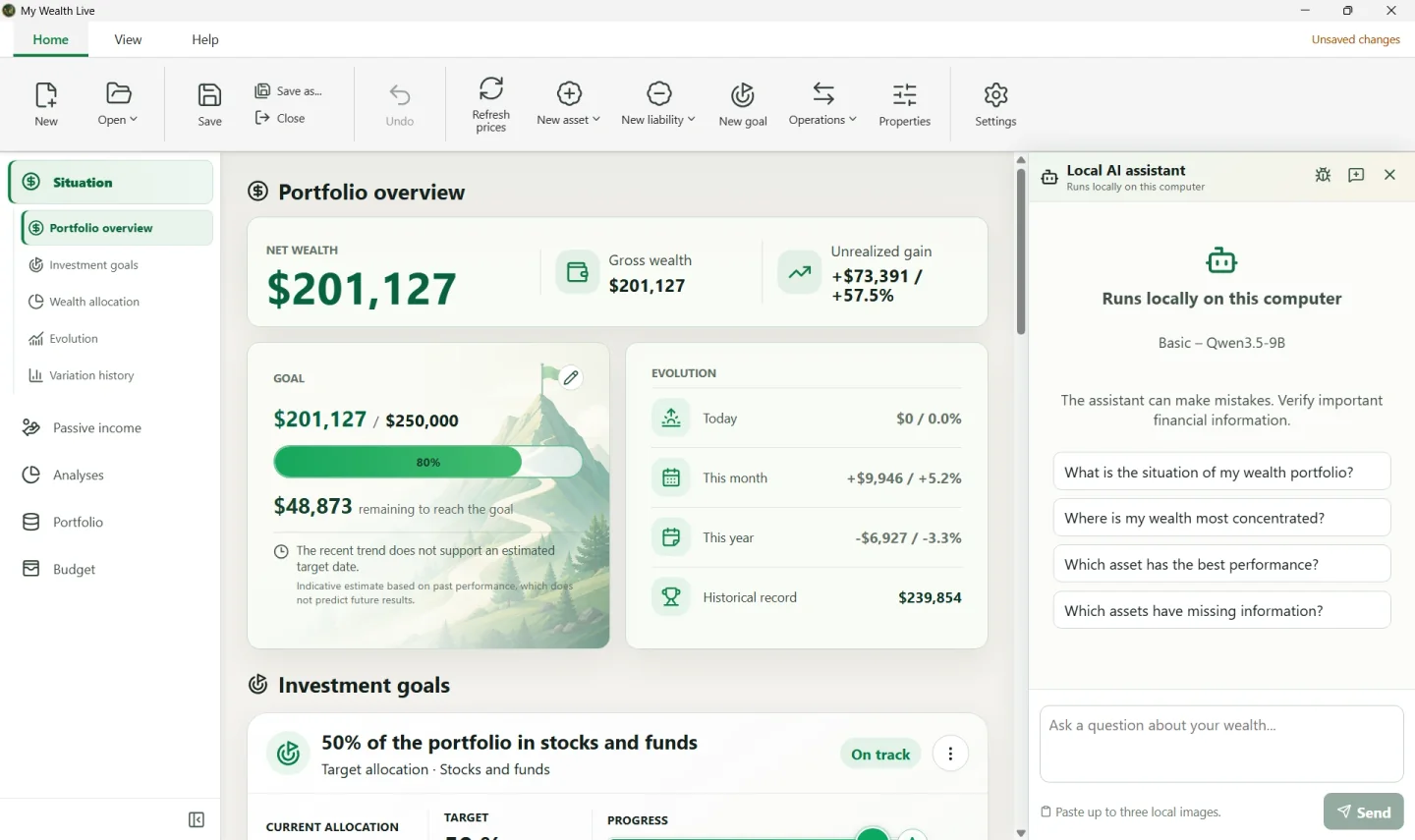
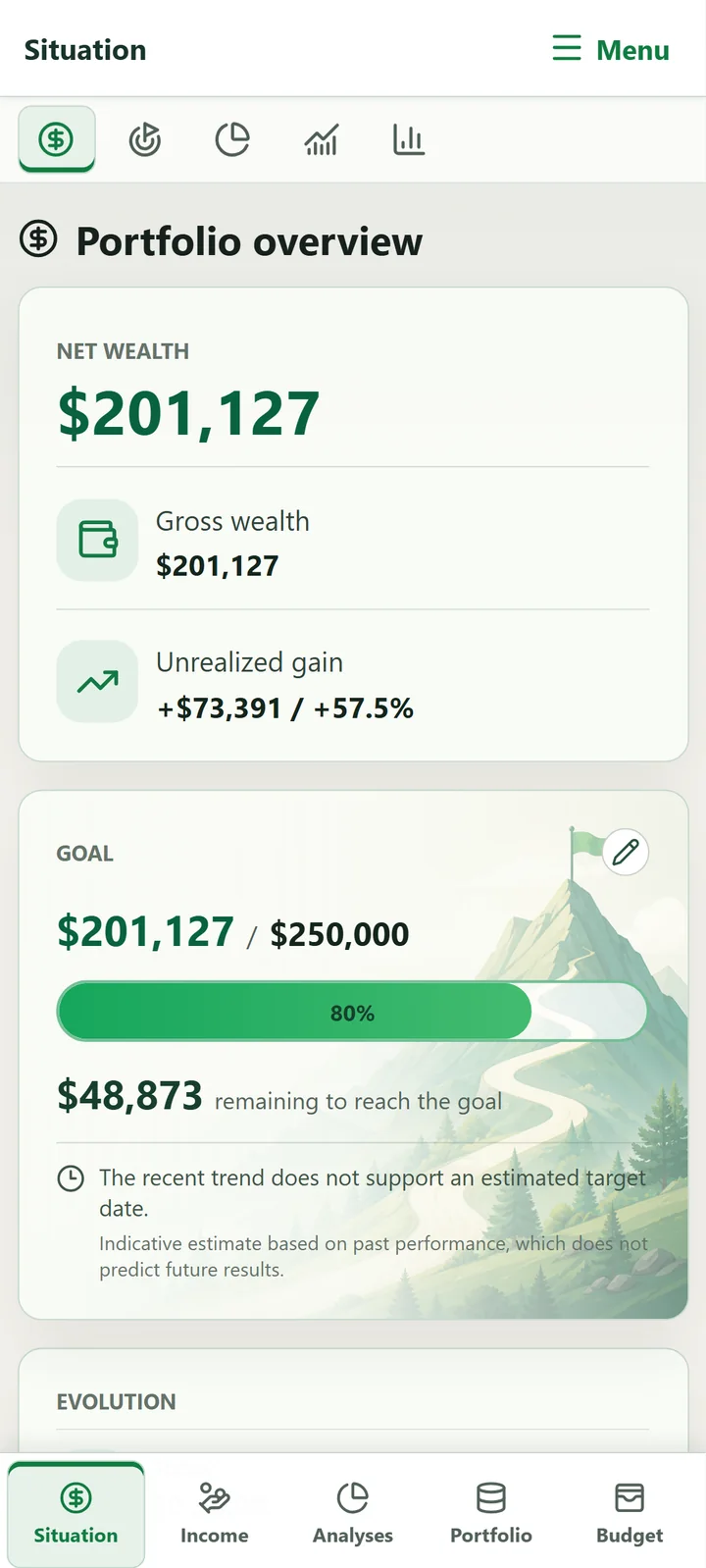
Comparing capabilities
| Feature | Windows | Android |
|---|---|---|
| Create and edit a wealth file | Yes | Yes |
| Situation, income, analyses, goals, and budget | Yes | Yes |
Open and share a .mywealth file | Yes | Yes |
| Saving | Manual or automatic | Always automatic |
| Offline working copy | Not required | Yes |
.bak backups | Up to five versions | No |
| Import external data | Yes | No |
| Encrypt the wealth file | Yes | Yes |
| My Wealth Live | Yes, with a licence | Yes, with a licence |
| Application updates | From My Wealth | From Google Play |
| Local AI assistant and MCP server | Yes | No |
| Hide preview in recent apps | Not applicable | Yes |
Choosing the right version
- Use Windows to import data, configure local AI or MCP, and manage files and their backups directly.
- Use Android to view and update your wealth data while travelling, including offline after first opening it.
- Use both if your file provider is available on your PC and phone.
What happens to the file on Windows
My Wealth edits the open file directly. Save updates that file; Save as chooses another destination. If backups are enabled, up to five .bak files are kept beside the document.
Before closing a modified document with manual saving, choose Save, Discard, or Cancel in the dialogue.
What happens to the file on Android
The Android document picker gives My Wealth access to the selected file. The application then maintains a private working copy: you can continue working offline, and changes are published automatically to the external document once it becomes accessible again.
Share a copy sends a copy without changing the current location. The Android privacy setting can hide My Wealth content from the recent-apps screen.
Switching devices without conflicts
- Put the file in a location available on Windows and Android, for example through your storage provider.
- Finish saving on the first device.
- Wait for the provider to finish synchronising.
- Then open the file on the second device.
Do not edit the same wealth file simultaneously on both devices: your provider could create two competing versions. If that happens, keep both files and compare them before deleting either one.