Update your portfolio without copying everything
Provide a screenshot or statement of your investments: My Wealth identifies positions, values and balances to update your data. You check the proposed changes, correct them if needed and choose which to apply.
Analysis runs on your computer, on Windows, using an installed local AI model.
Install My Wealth to use smart import · Watch the video tutorial
1. Which documents can you use?
| Document type | What to check |
|---|---|
| Screenshot or PNG, JPEG or WebP image | Names, quantities and amounts are readable; you know whether the image shows all your investments or only part of them |
| Exported CSV, TSV, TXT or OFX file | Columns are understandable, with the data's currency and date if available |
| PDF statement with selectable text | The text contains the information to transfer |
AI can read quantities, prices and balances, then match them with investments already in My Wealth. For a scanned PDF whose text cannot be selected, use a readable screenshot instead.
The result's quality depends on the model and document. Information may be misread or missing: review the results before applying them.
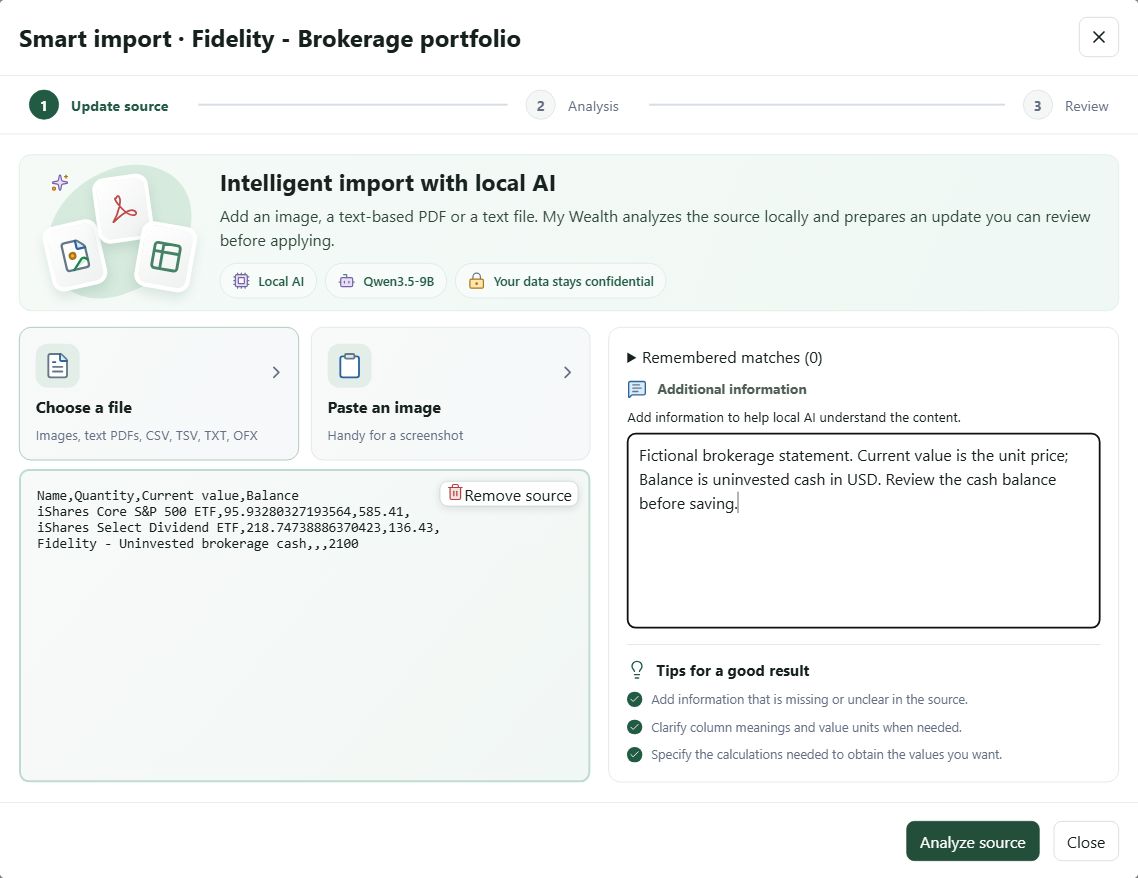
2. Example: a balance changes from 2,000 to 2,100 USD
The demonstration statement contains two security positions and a cash balance. These items are already present in My Wealth.
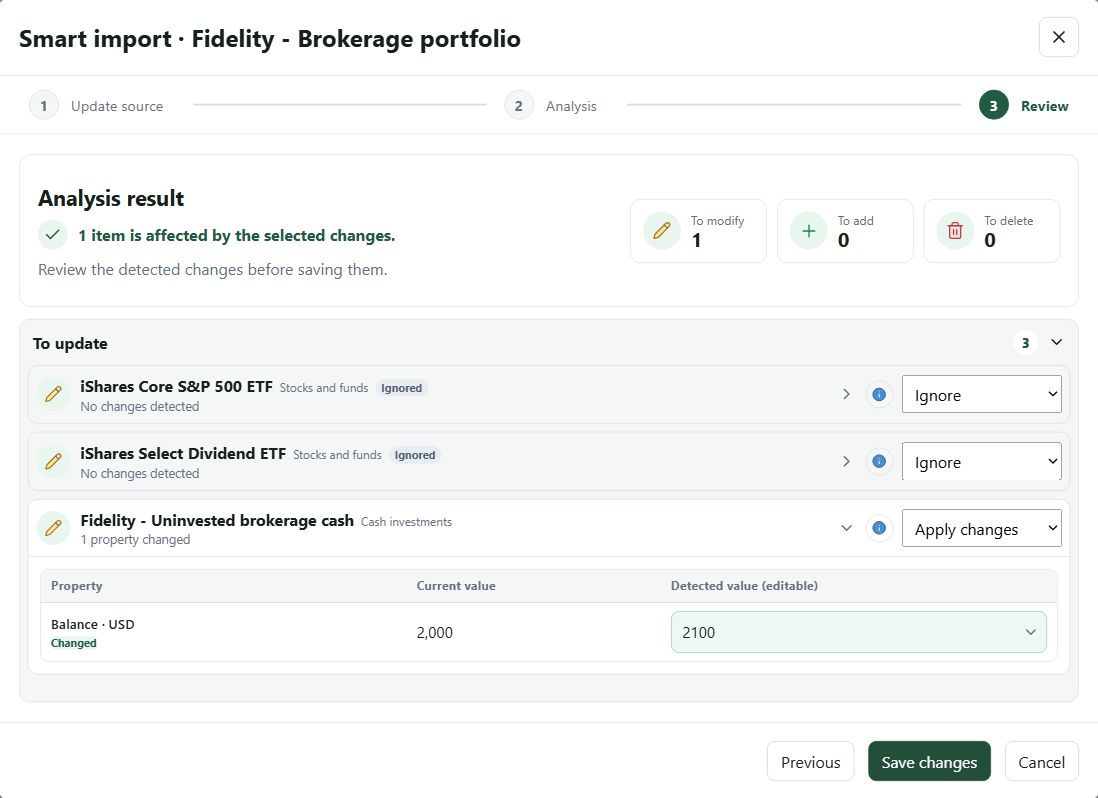
| Item | Proposed change |
|---|---|
| Brokerage account cash | Change the balance from 2,000 to 2,100 USD |
| Two security positions | No change |
| All selected changes | One change, no asset added or deleted |
In this fictional example, you check the new balance and apply this change alone. The two securities remain unchanged.
With another document, you might need to correct the matched investment or complete details for a new asset. For an image-based example, follow updating from a screenshot, step by step.
3. How do you update your data?
- From the relevant holding account's menu, open Smart import.
- Add your document and start the analysis.
- Check the matched investments and proposed values. Correct errors and complete any missing information if needed.
- Choose the changes to keep, then click Save changes.
Nothing in your wealth data is changed during analysis. You retain control over the changes applied.
If your document shows only part of the portfolio, you may still own an investment missing from the image. Check before accepting its deletion.
To organise regular updates, you can also use the Update Centre. It lets you schedule tracking without being required to launch a smart import.
4. Stay in control without connecting your bank accounts
You choose the document to analyse from your bank or broker. My Wealth does not need your bank credentials to read it.
The document describes your position at a given date. New transactions are not retrieved automatically: you decide when to add a new statement or screenshot.
AI analyses the document on your computer. Smart import does not require a Live subscription. My Wealth Live services are a separate option, notably for finding assets and retrieving prices.
To try it with your data, install My Wealth on Windows, then a compatible local AI model.