
Getting started with My Wealth
This walkthrough creates a minimal wealth file with an owner, a support, and an account. When finished, the account's value appears in Situation, and the document can be reopened on Windows or Android.
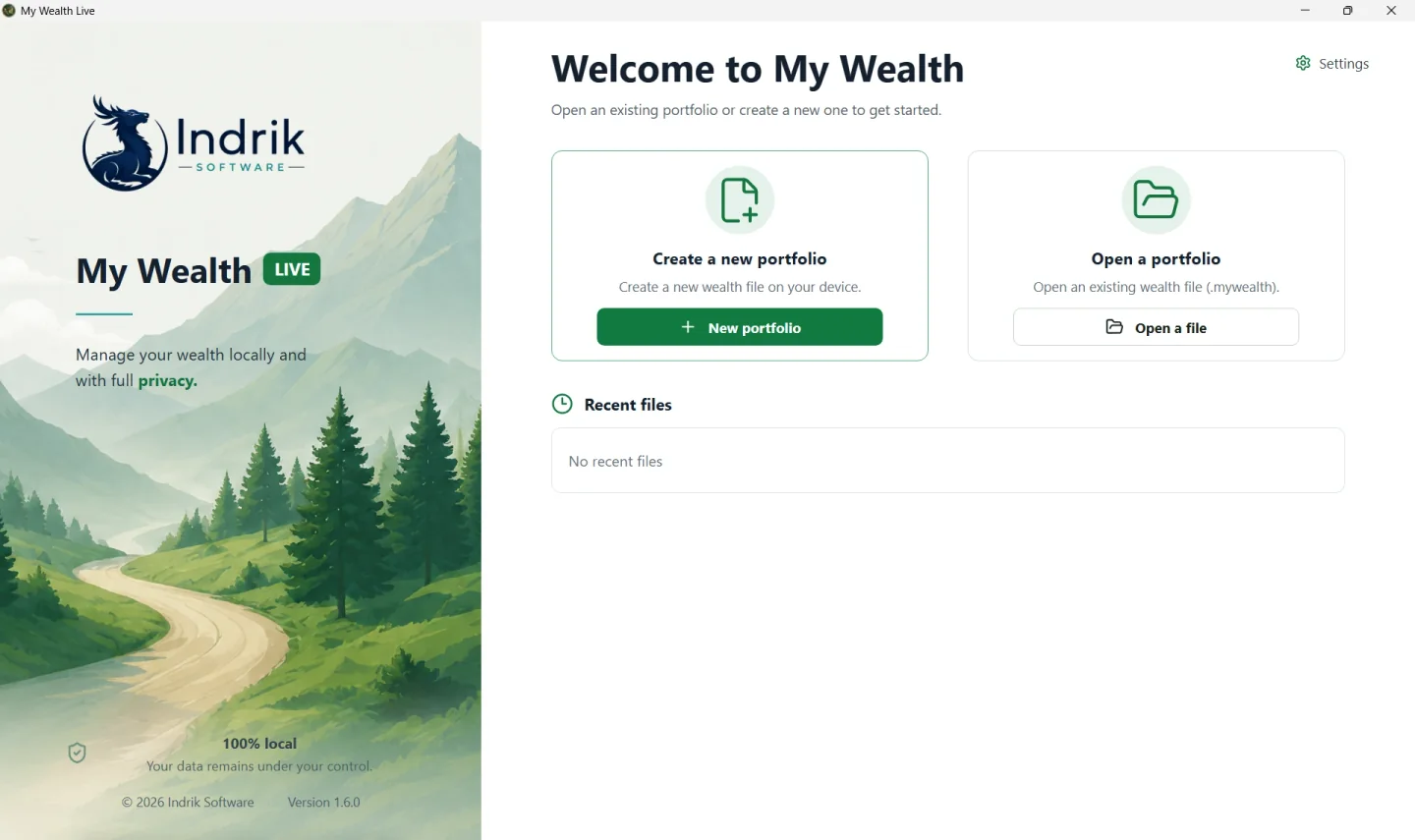
1. Creating the file
From the home screen:
- Select New portfolio.
- Give the document a recognisable name, such as
Family wealth. - Choose the currency in which you want to read totals, such as
EUR. - On Windows, save the file with the
.mywealthextension. On Android, choose its location in the document picker.
To resume an existing document, use Open a file instead of New portfolio. Opening does not create a separate copy on Windows; on Android, My Wealth keeps a private working copy and synchronises changes with the selected document.
2. Checking the owner and currency
Open Properties:
- Under General, check the Name and Main currency.
- Under Owners, add the people or organisations that may own supports.
- Designate the main owner. This owner is used by default in calculations that require an allocation when no explicit ownership is defined.
- On Windows, choose whether saving should be automatic.
The main currency does not change the actual currency of your assets. An account in USD remains in USD even if totals are displayed in EUR.
3. Adding a first support and account
Creating a support is not mandatory, but here it lets you clearly define ownership of the account.
- Create or select the support that will hold the account.
- Assign the owner or owners and their ownership shares to this support.
- Select New asset.
- Choose Savings accounts, then the account type that matches your situation.
- Under General information, enter a name such as
Current accountand select the support created earlier. - Under Valuation, choose the account currency and enter its current amount.
- Select Apply.
Example: for a joint account containing USD 150, keep USD as the currency and enter 150. If the main currency is the euro, My Wealth will ask for a USD-to-EUR rate as soon as a total in euros requires it.
4. Checking the result and saving
Return to Situation. The account should contribute to Gross wealth and appear in its family. If the total is marked as partial, open Properties > Exchange rates: a required conversion is probably unavailable.
On Windows, use Save if automatic saving is disabled. On Android, wait for confirmation that the file has been saved before closing the application or opening the same file on another device.