
Updating values with My Wealth Live
My Wealth Live avoids manual entry when its catalogue recognises an asset or conversion. A licence is not required to open your wealth file, correct a value, or create an asset manually.
Using Live when adding an asset
- Select New asset and the family, such as Cryptocurrencies or Stocks and funds.
- Use the Live search in the dialogue.
- Choose the result that exactly matches the security, market, or symbol you want.
- Check the pre-filled currency and identifier, then enter your quantity.
- Apply the asset.
Two instruments with similar names may be traded on different markets and in different currencies. Check this information before confirming.
Activating the licence
Open the My Wealth Live offer from the home screen or Settings, select Activate my licence, then complete the verification. Reopen the wealth file if a Live command remains disabled after activation.
Updating items already recorded
- Save the wealth file before a major update.
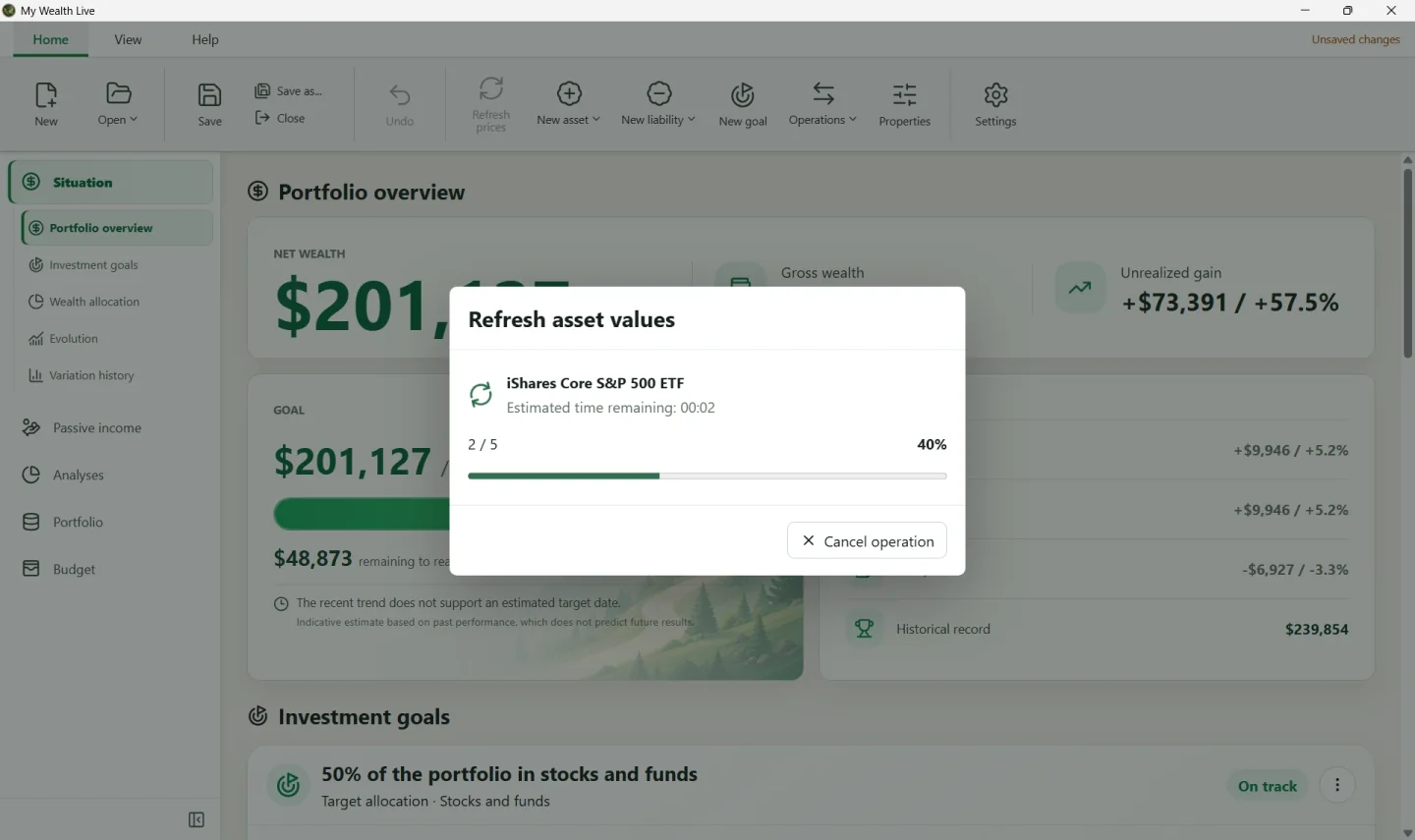
- Select Refresh prices.
- The progress display shows the item in progress and the number processed.
- When it finishes, read the summary: it distinguishes updated values from skipped items or errors.
- Return to Situation and check the effect on the total and history.
A remote error does not replace an existing value with zero. If you cancel, items already processed keep their results and the remaining items stay unchanged.
If the service is unavailable
Open the asset that was not updated and check its identifier, symbol, market, and currency. An asset entered entirely by hand without a Live identifier remains manual; this is not an error.
When a calculation needs a missing rate, Live also tries to retrieve it. If the service does not respond, My Wealth opens the manual entry dialogue; the conversion remains in the file and can be corrected later.