
Saving, synchronising, and protecting your data
The .mywealth file is the reference document: it contains assets, liabilities, goals, the budget, rates, wealth-specific permissions, and history. Copying this file is enough to move or back up your wealth data.
Saving and recovering a version on Windows
- Use Save to update the open file.
- Use Save as to create an independent copy or permanently change its location.
- Under Properties > General, enable automatic saving if you do not want to save manually.
Windows keeps up to five .bak backups beside the file. If a problem occurs, first copy the chosen backup to another location, give the copy a name ending in .mywealth, then open that copy. Do not work directly on your only backup.
Before closing or replacing a modified document, My Wealth offers to save, discard the changes, or cancel.
Understanding saving on Android
Android saves automatically to a private copy, then publishes changes to the selected document. If the external provider is temporarily unavailable, the private copy lets you continue; afterwards, check that publishing succeeded before switching devices.
Share a copy does not affect the current file. To permanently change its location, use the action provided for that purpose.
Synchronising with a file provider
- Save the file in a folder managed by your provider.
- Close the document or wait for saving to finish on the first device.
- Check that the file has finished uploading.
- Open it on the second device and check the date or a recent change.
Avoid two simultaneous editing sessions. If the provider creates a “conflicted” file, keep both versions until you have identified the newest one and checked the changes.
My Wealth does not itself provide centralised cloud synchronisation: the file you choose remains the source of your data.
Encrypting an existing file
- Save the wealth file first.
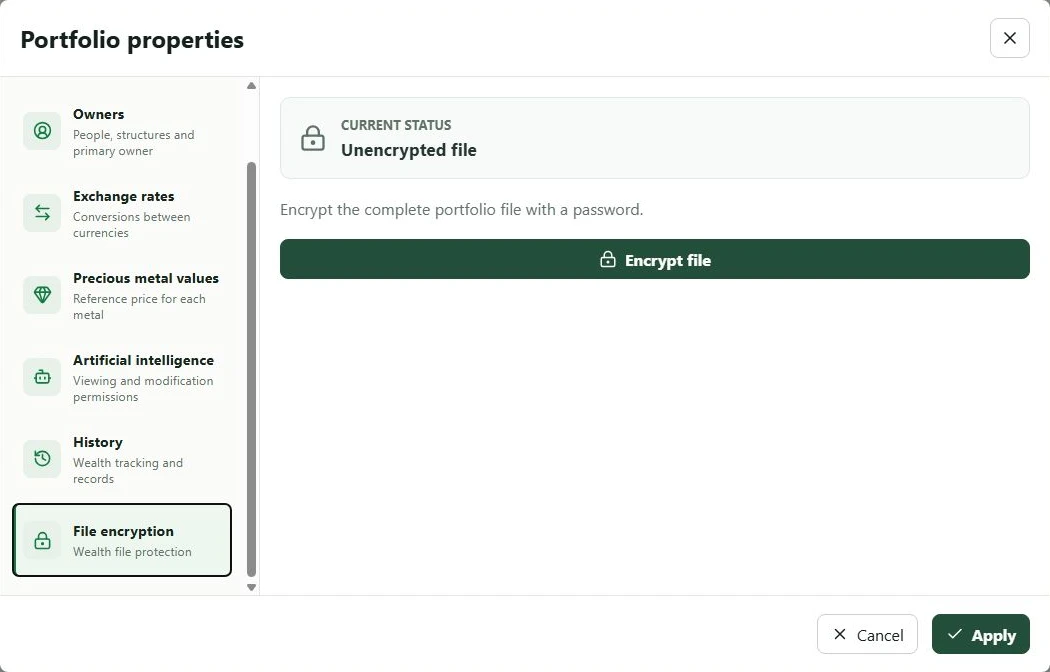
- Open Properties > File encryption.
- Select Encrypt file.
- Enter and confirm the password.
- Tick the confirmation stating that losing the password makes the file unusable.
- Start encryption, then close and reopen the file to verify the password.
Subsequent saves remain encrypted without asking for the password again during the session. Existing .bak backups retain the active password when they were created. My Wealth does not store the password and cannot recover it.
On Android, you can also hide the My Wealth preview in recent apps from the settings.